How to Create a Virtual Lab for Penetration Testing ?

A penetration testing lab, also known as a virtual hacking lab, is a controlled digital environment where you can safely practice offensive and defensive cybersecurity techniques. Instead of relying on live systems or real networks, you replicate them virtually—giving you full control with zero real-world consequences.

For aspiring ethical hackers or seasoned professionals looking to sharpen their skills, building your own lab provides something that tutorials and lectures can’t: direct, hands-on experience. It offers a safe space to test ideas, learn from mistakes, and explore real tools without fear of damaging data or violating policies.

You don’t need expensive hardware or enterprise licenses to get started. With free tools like Kali Linux and virtualization software, you can build a reliable lab right on your laptop. It’s cost-effective, secure, and one of the smartest ways to deepen your understanding of ethical hacking.


What Is a Virtual Lab for Ethical Hacking?

A virtual lab for ethical hacking is a software-defined environment where you can test security techniques, simulate attacks, and learn penetration testing without ever touching a live network. Unlike a physical lab—which requires routers, switches, extra machines, and plenty of space—a virtual lab runs entirely inside your computer using virtual machines (VMs).

Virtual machines are isolated systems that behave like real computers. You can install operating systems on them, run programs, connect them into networks, and break things—all without harming your host computer. Tools like VirtualBox and VMware allow you to create multiple VMs and simulate real-world network scenarios, including servers, client machines, firewalls, and vulnerable targets.

The beauty of a virtual lab is its flexibility. You can take snapshots, revert to previous states, test malware or exploits, and reset everything with a few clicks. For hacking and defense training, this kind of controlled environment is not just convenient—it’s essential.


What Do You Need Before Setting Up a Pentesting Lab?

Cybersecurity student preparing hardware and software to build a virtual penetration testing lab.

Before diving into setup, there are a few essentials to check off your list. You don’t need enterprise-grade hardware, but your system should be able to handle multiple virtual machines running at once. Here’s a quick look at the minimum hardware specs you’ll want for your laptop or desktop:

  • RAM: At least 8GB (16GB recommended)
  • CPU: Multi-core processor (Intel i5 or higher)
  • Storage: Minimum 100GB free space (SSD preferred for speed)

On the software side, you’ll need a virtualization platform. Two of the most popular options are:

  • VirtualBox – free and open-source
  • VMware Workstation Player – free for personal use

You’ll also need ISO images or prebuilt VMs for common operating systems, like Kali Linux, Windows, or intentionally vulnerable machines like Metasploitable.

Just as important as the tools is the lab environment itself. Make sure your virtual lab is isolated—meaning it doesn’t share network access with your main system or the internet unless explicitly configured. This prevents unintended exposure or damage. Most platforms allow you to create “host-only adapters” or internal networks that restrict VM communication to your lab only.

Lastly, decide whether you’re building everything locally or using cloud-based platforms. While running the lab on your own laptop gives full control, browser-based virtual environments (like Apporto) offer a simpler path with no setup and no risk of misconfiguration.


Which Virtual Machines and Operating Systems Should You Use?

To build a useful penetration testing lab, you need a diverse mix of virtual machines (VMs) running different operating systems. This simulates the kind of variety you’d encounter in real-world networks—because not everything is Linux, and not every machine is up to date or properly secured.

Here are some of the most commonly used systems:

  • Kali Linux – A must-have for any ethical hacker. It comes preloaded with dozens of offensive security tools like Metasploit, Nmap, Wireshark, Burp Suite, and more.
  • Windows – Many corporate environments still rely on Windows systems, making them high-value targets. Running Windows 10 or Server 2016 in your lab lets you test privilege escalation, enumeration, and persistence techniques.
  • Metasploitable – A deliberately vulnerable Linux machine built for practice. It’s great for testing exploits safely.
  • DVWA (Damn Vulnerable Web App) – A vulnerable web app you can install on any Linux server. Perfect for practicing web-based attacks like SQL injection and XSS.
  • ParrotOS – Another Linux distro focused on security, privacy, and development. It’s lighter than Kali and sometimes preferred for lower-spec machines.

These systems are all free to use and widely supported. By combining them, you get exposure to different operating systems, software stacks, and vulnerability types. This variety is crucial—not only does it mirror the complexity of real-world IT environments, but it also expands your knowledge and adaptability as an ethical hacker.


How Do You Set Up a Virtual Lab for Penetration Testing? (Step-by-Step Guide)

Cybersecurity student installing VirtualBox and VMware Workstation Player on a laptop for penetration testing lab setup.

Once you have your systems ready, it’s time to build your lab. This setup ensures that all machines can communicate with each other but remain safely isolated from the outside world. Follow this step-by-step process:

1. Install Your Virtualization Platform

Download and install either:

Both allow you to run multiple VMs with custom networking.

2. Create a Host-Only Network Adapter

In your virtualization settings:

  • Create a host-only adapter
  • Enable the DHCP server option if you don’t want to manually assign IPs

This keeps your VMs isolated from the internet but allows them to communicate with one another and your host computer.

3. Download and Set Up Your Virtual Machines

Get ISO or OVA files for:

  • Kali Linux
  • Windows (you can use the free Windows 10 evaluation version)
  • Metasploitable 2 or 3
  • DVWA (can be installed on a LAMP/LEMP server inside a Linux VM)

Install each in its own VM and allocate:

  • 2GB RAM for Linux VMs
  • 4GB+ RAM for Windows
  • At least 20GB storage per VM

4. Configure Networking and IP Addresses

Once installed:

  • Ensure all VMs are using the host-only adapter
  • Check each machine’s IP (use ifconfig or ip a on Linux, ipconfig on Windows)
  • Assign static IPs if DHCP is disabled

A basic example:

Machine OS IP Address
Kali Linux Linux 192.168.56.10
Metasploitable Linux 192.168.56.20
Windows 10 Windows 192.168.56.30


5. Test the Lab Network

From Kali, try:

ping 192.168.56.20

If you get a response, the VM is reachable. Do the same with your Windows machine.

6. Isolate the Environment

Ensure:

  • No VM has a bridged or NAT network adapter
  • Internet access is disabled for target machines
  • Your host firewall is enabled and properly configured

This ensures your lab environment stays isolated, protecting your personal data and preventing accidental outreach to the public internet.


How Can You Practice Ethical Hacking Safely in a Lab?

Once your lab is set up, the next step is to make sure you’re working safely—for yourself and others. A penetration testing lab should be isolated, intentional, and governed by discipline. Ethical hacking only stays ethical when it’s confined to a controlled environment.

First and foremost, never run internet-facing exploits or scans on machines outside your lab. Your virtual machines should not be connected to the public internet unless absolutely necessary—and even then, it’s best to use outbound-only settings or proxies. Mistakenly running scans against external IP addresses could land you in legal trouble.

To keep your setup clean, make regular use of VM snapshots. These are restore points you can create before launching an exploit or installing new tools. If something breaks—or if malware corrupts the machine—you can revert to a clean state in seconds.

You can also enhance your learning by creating intentional vulnerabilities. Install outdated web servers, weak SSH configurations, or even custom misconfigurations that allow privilege escalation. Platforms like DVWA and Metasploitable are built for this kind of practice.

Most importantly, take responsibility for everything you do inside your lab. Keep logs, track changes, and resist the urge to “see what happens” on systems you don’t own. Staying within your boundaries ensures that your growth as an ethical hacker is both effective and respectful of others.


What Are the Must-Have Tools in a Pentesting Lab?

Cybersecurity workstation running a full penetration testing toolkit inside a virtual hacking lab environment.

The strength of a penetration testing lab isn’t just in the machines—it’s in the tools you run inside them. On Kali Linux or similar security-focused distributions, you’ll find a wide range of pre-installed programs. These tools cover everything from reconnaissance to post-exploitation.

Here are the core tools you should be familiar with:

Tool Purpose
Nmap Network scanning and host discovery
Burp Suite Web application testing and proxying traffic
Metasploit Exploitation framework for known vulnerabilities
Wireshark Packet sniffing and traffic analysis
Nikto Web server vulnerability scanner
Hydra Password brute-forcing for multiple protocols
John the Ripper Password cracking and hash analysis
Gobuster / Dirb Web directory and file enumeration


While Kali comes loaded with these tools, you can also extend your lab using:

  • Community GitHub repositories with custom scripts
  • Docker containers running vulnerable services
  • Exploit-DB for researching public exploits

You don’t need to master them all at once. Start with a few, learn how they work, and build up your toolkit over time. Practicing regularly helps you recognize patterns, understand vulnerabilities, and refine your technique.

In the next section, we’ll look at how to simulate networking scenarios that mimic real-world environments—and why doing so matters.


How Do You Build Networking Scenarios Within the Lab?

A virtual lab becomes far more useful when you simulate real-world networking conditions. It’s one thing to run scans on a single machine. It’s another to test how those scans behave across subnets, firewalled segments, or layered application stacks. That’s where networking scenarios come into play.

Start by using host-only or internal adapters when configuring your virtual machines. These restrict traffic to your local lab environment, ensuring safety while allowing full control over the flow of packets.

To simulate more complex networks:

  • Create multiple subnets with different IP ranges. For example, use 192.168.56.0/24 for user systems and 10.0.2.0/24 for servers.
  • Introduce a router VM using pfSense or a Linux box with iptables to act as a bridge or filter between these subnets.
  • Use static IPs for machines like your attack box (e.g., Kali) and targets. This allows precise control during testing.

You can also simulate multi-tiered applications:

  • One VM runs a database (e.g., MySQL)
  • Another hosts a web application (e.g., DVWA)
  • A third acts as a front-end or proxy

Want to test firewall evasion? Create firewalled zones using built-in firewall tools (like Windows Defender Firewall or ufw on Linux). By mimicking segmented networks and restricted access, you’ll gain practical experience in bypass techniques, lateral movement, and privilege escalation—all in a safe, virtual space.

This kind of layered network modeling is what sets a basic lab apart from one that truly prepares you for the real world.


What Common Mistakes Should You Avoid While Creating a Pentesting Lab?

Cybersecurity student troubleshooting a misconfigured virtual penetration testing lab environment.

Even experienced users make errors when setting up their lab. Some can be inconvenient. Others can be risky. Avoiding these common mistakes will save you time, confusion, and potential security headaches.

Failing to Isolate the Lab Environment

Never connect a vulnerable VM (like Metasploitable) to a bridged network or allow it internet access unless you’ve locked it down thoroughly. Keep your testing network isolated using host-only or internal adapters.

Misconfiguring Virtual Networks or DHCP

Overlapping DHCP servers or mismatched network adapters often lead to broken connections or unpredictable behavior. Define your IP ranges clearly and disable unnecessary DHCP services. Assign static IPs where possible.

Using Outdated Systems Without Understanding Risks

Yes, old systems like Windows XP or outdated Linux builds are great for learning—but only if you know what you’re doing. Leaving them unpatched or accessible outside your lab could expose you to malware or unintended threats.

Overlooking Documentation and Change Management

It may seem tedious, but take notes. Document your network layout, IPs, VM configurations, and tool versions. This not only helps with troubleshooting but becomes a useful reference as your lab grows in complexity.

Mistakes are part of the learning process, but avoidable ones can slow you down or compromise your host machine. Keep your environment tidy, your configurations intentional, and your curiosity grounded in discipline.


Can You Scale or Automate Your Virtual Pentesting Lab?

As your skills grow, so will the complexity of your lab. Manually spinning up new machines, reconfiguring networks, or resetting environments can become time-consuming—especially if you’re running training sessions, completing coursework, or working on multiple test cases. That’s where scaling and automation come in.

You can use scripts—typically written in Bash, PowerShell, or Python—to automate the deployment of virtual machines and configure networking automatically. Tools like Vagrant, Ansible, or even simple shell scripts can help replicate your lab in minutes rather than hours.

If you’re running the same tests repeatedly (for practice or demos), take advantage of VM snapshots. These allow you to create baseline states and return to them instantly after each run. This is particularly useful when creating course modules, lab exercises, or test environments for certification prep.

Want visibility into what’s happening in your lab? Add monitoring tools like ELK stack (Elasticsearch, Logstash, Kibana), OSQuery, or simple system logs. This gives you a clearer picture of what your attacks are doing and how systems respond.

For advanced workflows, integrate your lab with GitHub to version control your testing scripts, payloads, and documentation. You can even simulate a lightweight CI/CD pipeline to test the security of application code in your virtual environment. This mirrors what real-world DevSecOps looks like—and gives you valuable insight into modern security engineering practices.

Whether you’re automating a single VM build or deploying a full lab network with five different targets, these techniques will save time and allow you to experiment more freely.


Why a Browser-Based Virtual Pentesting Lab Might Be Better

Despite all the flexibility of building your own lab from scratch, there’s no denying the setup time, hardware requirements, and room for error. If you’re limited by your computer’s specs, short on time, or managing a classroom or team, you might want something simpler.

A browser-based virtual pentesting lab solves many of these problems at once. With no installations or downloads, you can launch fully configured environments—complete with Kali Linux, Windows targets, and vulnerable apps—from any device with a browser. That includes Chromebooks, loaner laptops, and even tablets in some cases.

This is especially useful in educational settings, certification programs, or collaborative training sessions where consistency across users is essential. It also eliminates the burden of maintaining isolated environments, managing virtual networks, or troubleshooting local virtualization errors.

Example: Apporto Cybersecurity Lab


Apporto offers a fully browser-based cybersecurity lab built specifically for ethical hacking and cyber education. You can:

  • Run pre-configured VMs in the cloud
  • Create isolated, secure labs with no client install
  • Scale up easily for classrooms or teams
  • Track activity and progress through built-in tools

With this approach, you get the same tools and realism of a traditional virtual lab, but with far fewer headaches. It’s not only convenient—it’s scalable, secure, and highly accessible.

In the final section, we’ll bring everything together with a quick recap and a recommendation on how to move forward in your ethical hacking journey. Try Apporto.


Final Thoughts

Absolutely—and in more ways than one. A virtual penetration testing lab is a low-cost, high-value investment in your cybersecurity skills. It’s safe, controlled, and replicates real-world systems without putting actual data or networks at risk.

With just your laptop, free virtualization software, and a few downloadable images, you can create a learning environment that grows with you. From scanning and exploitation to post-exploitation and hardening, a personal lab gives you the flexibility to test, break, fix, and learn at your own pace.

But remember—with great power comes great responsibility. Practicing ethical hacking means respecting boundaries, staying within your isolated lab, and using your knowledge to build, not destroy.

So keep experimenting. Keep learning. Whether you’re aiming for a certification, improving job skills, or simply feeding your curiosity, your own pentesting lab is one of the best places to begin.

And if you’re looking for a faster way to get started—no setup, no installs—try a browser-based platform like Apporto to simplify the process.


Frequently Asked Questions (FAQs)


1. What is a penetration testing lab?

A penetration testing lab is a safe, isolated environment where you can simulate attacks and practice ethical hacking techniques without impacting real systems or violating laws.

2. Can I set up a hacking lab for free?

Yes. With free tools like VirtualBox, Kali Linux, and Metasploitable, you can build a complete penetration testing lab using just your existing computer and some available disk space.

3. Is Kali Linux necessary for a virtual pentesting lab?

Kali Linux isn’t mandatory, but it’s strongly recommended. It comes with hundreds of preinstalled tools for scanning, exploitation, and analysis—all in one place.

4. How do I isolate my lab from the internet?

Use host-only or internal network adapters in your virtualization software. This keeps your virtual machines from accessing or being accessed by external networks, including the internet.

5. What’s the best platform to create virtual machines?

VirtualBox is a popular, free option for most users. VMware Workstation Player offers better performance in some cases. Both support snapshotting and custom network setups.

Virtual Training Platforms: What You Need to Know Before You Build or Buy One


In a world increasingly shaped by distributed teams and digital workflows, virtual training platforms have become more than a convenience — they’re a necessity. As online learning expands across industries, from corporate offices to university classrooms, organizations are rethinking how they deliver knowledge, build skills, and track progress.

Whether you’re running compliance training for a growing workforce, teaching soft skills to future managers, or supporting higher education programs, virtual platforms offer something traditional methods can’t: scalability, accessibility, and real-time adaptability. They break down geographic and logistical barriers, allowing learners to engage with content wherever they are, on their own terms.

And with the shift to hybrid and remote work showing no signs of slowing, the demand for flexible, effective online learning environments continues to grow. In the sections ahead, you’ll see what defines a great platform, how to use one effectively, and why it’s shaping the future of training and education.


What Is a Virtual Training Platform and How Does It Work?

A virtual training platform is a digital environment that allows you to deliver, manage, and scale learning programs online. It combines the structure of traditional classroom training with the flexibility of the web, enabling learners to access content from anywhere and progress at their own pace.

At its core, a virtual training platform is built to facilitate education without physical constraints. Unlike a basic online platform for sharing documents or videos, or a virtual classroom focused solely on live interaction, a training platform brings everything together — including course creation, learner tracking, and feedback tools — into one cohesive system. You might also hear it compared to a Learning Management System (LMS), though many training platforms are more lightweight, modern, or specialized depending on the use case.

Most platforms support a mix of delivery methods:

  • Live sessions led by instructors (often via tools like Zoom or Microsoft Teams)
  • On-demand modules learners can complete on their schedule
  • Blended learning, which combines both formats

Common features include tools for uploading and managing course materials, embedding videos, creating quizzes, and enabling interactive learning through polls or discussion forums. Behind the scenes, instructors and administrators can track progress, manage user access, and analyze data to improve training outcomes.

In short, a virtual training platform gives you the infrastructure to educate teams, clients, or students at scale — with flexibility, consistency, and visibility.

Let’s explore what separates a good platform from a great one.


What Are the Main Features of a Great Virtual Training Platform?

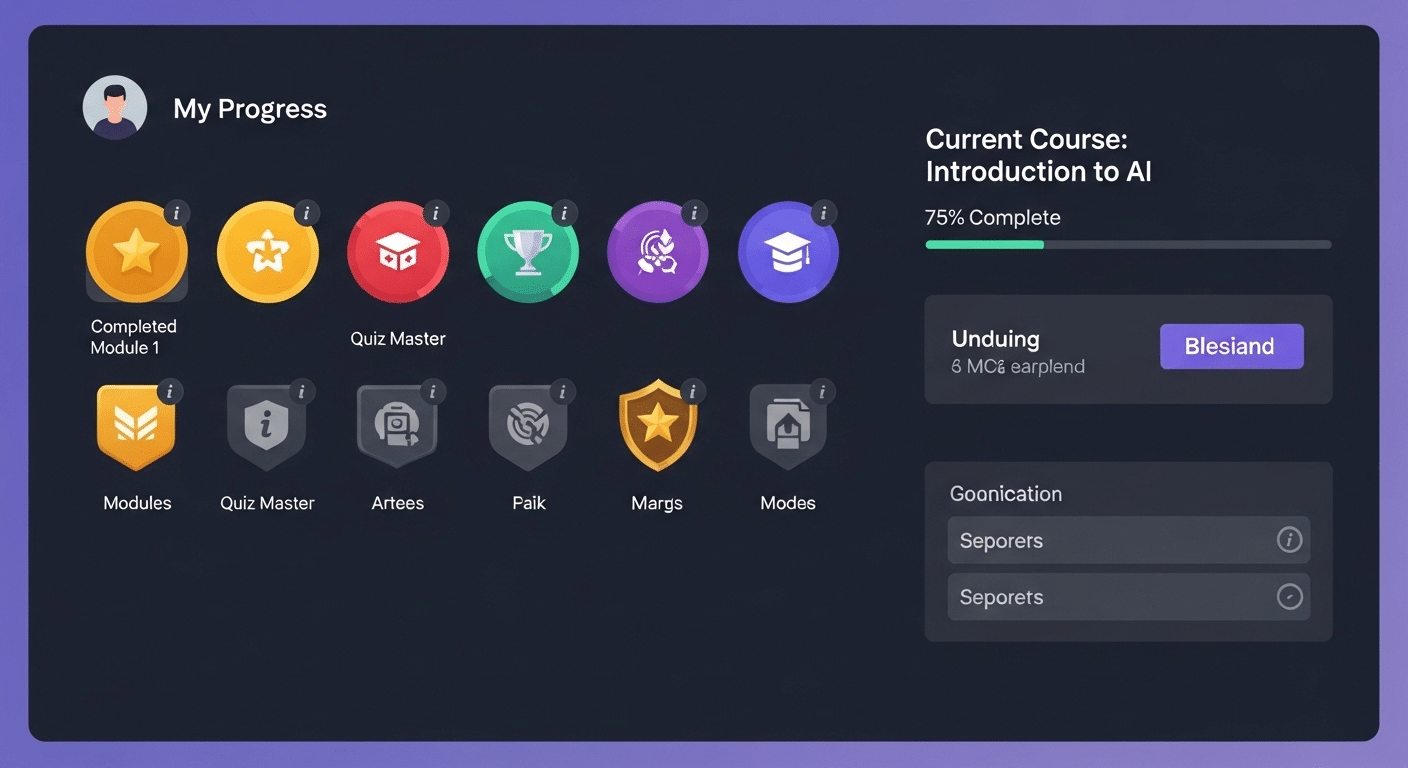
Gamified learning dashboard showing badges, progress bars, leaderboards, and personalized learning paths.

Not all virtual training platforms are equal. While many promise simplicity and scalability, the best ones share essential features that make learning smoother, more engaging, and easier to manage.

First, a clean, user-friendly interface is critical. Learners shouldn’t struggle to find modules or navigate cluttered menus. A good platform stays unobtrusive so attention stays on content.

Interactive tools like polls, quizzes, whiteboards, and annotations keep learners engaged. In live sessions, breakout rooms allow small groups to collaborate effectively.

Integration with video conferencing platforms such as Zoom or Microsoft Teams is now standard, enabling seamless sessions while tracking attendance and performance.

To boost motivation, gamification elements — badges, leaderboards, milestone tracking — add a sense of progress and achievement. Personalized learning paths go further, adapting content to performance or skill level so learners move at their own pace.

Mobile optimization is non-negotiable. Responsive design and apps ensure learners can access training anytime, on any device.

On the instructor side, grading tools, discussion boards, file sharing, and admin dashboards simplify management and communication.

Finally, system integration matters. Connections with HR tools, CRMs, or content libraries reduce friction and ensure the platform fits smoothly into existing workflows.

Together, these features define a platform that not only delivers content but also drives engagement, efficiency, and long-term learning success. Next, we’ll explore how they streamline course creation at scale.


How Do You Create Courses on Virtual Training Platforms?

Creating a course on a virtual training platform doesn’t require coding skills or advanced tech knowledge — just a clear structure and good content. Most platforms are designed to make the process intuitive so that subject matter experts, educators, or team leads can focus on the material rather than the mechanics.

It typically begins with setting up a new course shell, where you define the title, objectives, and structure. From there, you’ll upload course materials, which can include PDFs, videos, slide decks, or SCORM packages — the standard format for interactive eLearning content.

Next comes the fun part: adding interactivity. Most platforms allow you to embed quizzes, discussion prompts, and knowledge checks. Some even offer drag-and-drop builders for activities like matching terms, simulations, or polls — all of which boost learner engagement.

You’ll also choose how the course will be delivered:

  • Live sessions can be scheduled within the platform, often linked with Zoom or Microsoft Teams.
  • Self-paced modules let learners progress independently, which is ideal for flexible schedules.

To improve learning effectiveness, keep lessons short and focused. Use visuals to reinforce concepts and mix up formats to keep attention high. Group related modules into logical units, and always include a short recap or assessment at the end of each section.

Once published, you can track progress, gather feedback, and continue refining based on learner performance.

Now that you know how courses are created, let’s look at the types of training programs that benefit most from virtual delivery.


Which Types of Training Are Best Suited for Virtual Platforms?

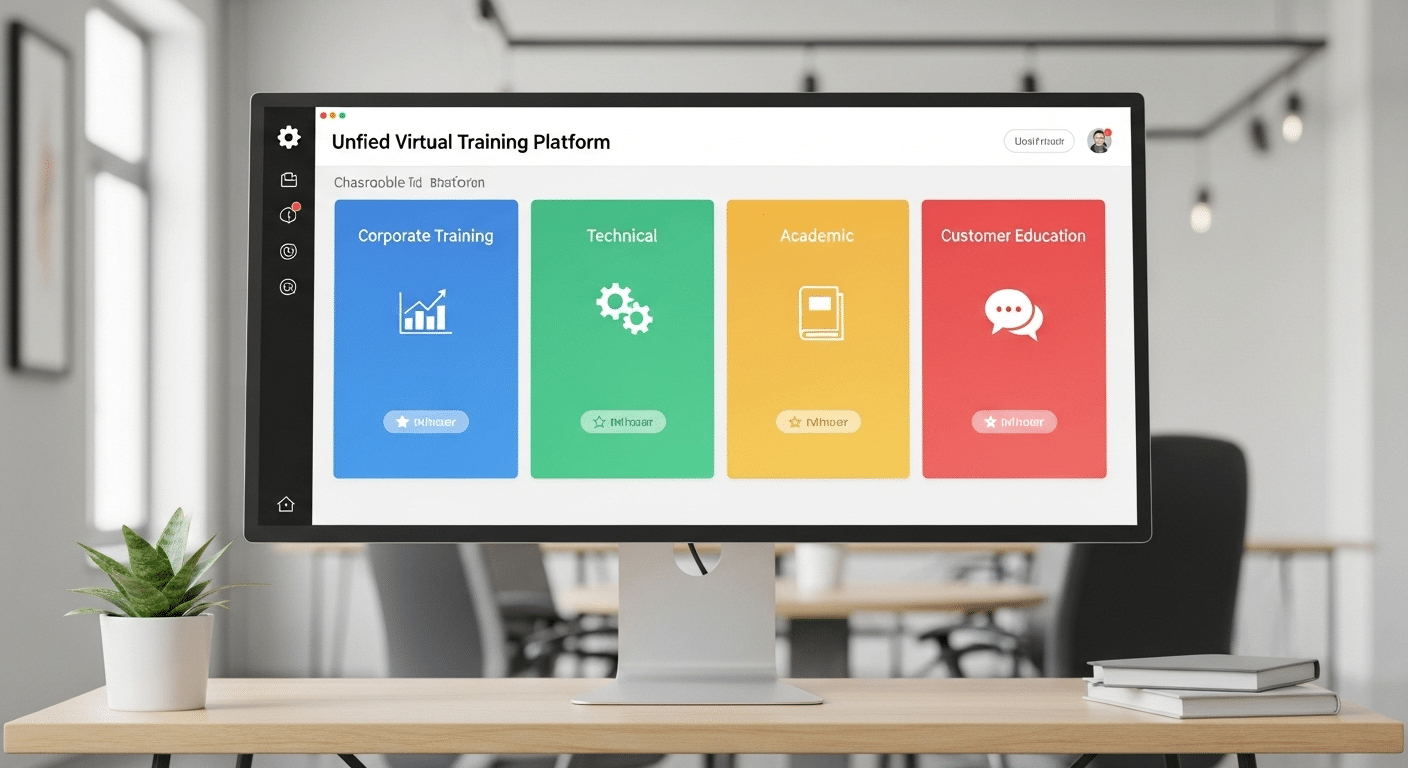
Unified virtual training platform supporting corporate, technical, academic, and customer education programs.

Virtual training platforms are flexible by design, which means they can support a wide range of use cases — from corporate onboarding to full-fledged university courses. But some types of training stand out as especially well-suited for the virtual environment.

Corporate training is a natural fit. Whether you’re onboarding new hires, delivering compliance training, or offering role-specific upskilling, a centralized platform makes it easy to create consistency across departments and geographies. Progress tracking and certification tools also make reporting and audits more manageable.

Technical skills training — including IT certifications and software mastery — also works well virtually. With features like screen sharing, sandbox environments, and interactive assessments, you can simulate real tools and tasks effectively.

Then there’s soft skills development. Leadership training, communication workshops, and even DEI programs can be delivered through blended learning models that combine self-paced modules with live sessions and discussion boards.

For companies with complex products or services, customer education becomes essential. Virtual platforms allow SaaS companies or service providers to scale onboarding, support, and enablement — often reducing support tickets and improving retention.

Higher education and continuing education programs are increasingly moving online. Platforms support full-semester courses, short certifications, and everything in between, making it easier for institutions to serve non-traditional students or expand globally.

Finally, training businesses and consultants use virtual platforms to monetize their content. These users need customizable branding, flexible pricing, and scalable delivery — all of which are now standard features.

Whether training employees, partners, or customers, the secret is aligning the delivery method to the audience. Some content works best in synchronous (live) formats, while others benefit from asynchronous access so learners can move at their own pace.

Next, let’s explore the core benefits that virtual training platforms offer.


What Are the Benefits of Using a Virtual Training Platform?

The advantages of using a virtual training platform go far beyond convenience. These systems are designed to scale — across departments, time zones, and devices — making them a practical choice for growing organizations and remote-first teams.

One of the most immediate benefits is scalability. Whether you’re training 10 employees or 10,000, the infrastructure doesn’t need to change. You can roll out global onboarding or role-specific upskilling with just a few clicks. That kind of reach would be impossible with in-person training.

You also cut down dramatically on cost and complexity. There’s no need to rent rooms, print materials, or coordinate travel. Everything is centralized in the platform — from course materials to tracking tools — and available on any device.

For learners, the ability to move through personalized learning paths at their own pace adds flexibility without sacrificing structure. The inclusion of multimedia content, interactive exercises, and assessments makes the experience more engaging than static slide decks or lectures.

Administrators benefit, too. Built-in analytics dashboards let you track progress, flag learners who need help, and report outcomes to stakeholders. That visibility drives accountability and better outcomes.

Organizations across industries have seen real gains. A tech company might use a platform to reduce onboarding time by 40%. A healthcare group might track compliance training more reliably. The use cases vary, but the benefit is the same: more efficient, effective training that works for everyone involved.

Let’s now take a closer look at how these platforms specifically support learner engagement.


How Can Virtual Training Platforms Improve Learner Engagement?

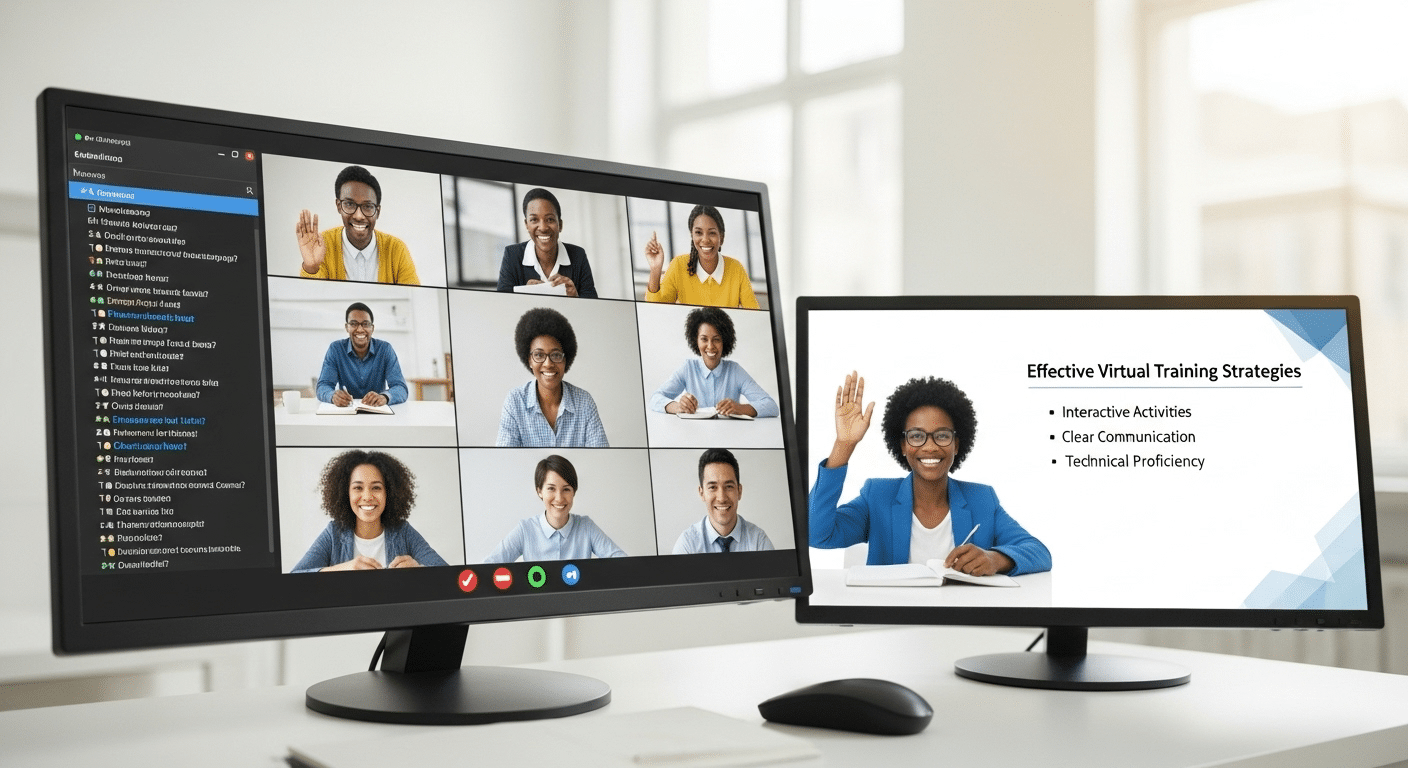
Highly engaging virtual training session with learners actively participating through interactive digital tools.

Keeping learners engaged is one of the biggest challenges in any training program. A well-designed virtual training platform helps solve this through thoughtful features that support active participation, personal relevance, and consistent motivation.

Interactive tools are a cornerstone of engagement. Built-in polls, quizzes, simulations, and annotation features turn learners from passive viewers into active participants. Add discussion boards, and you create space for reflection, collaboration, and peer-to-peer learning.

Live instruction — especially when combined with breakout rooms — allows for more direct interaction, small-group problem-solving, and a stronger sense of community. Learners are more likely to stay engaged when they’re part of a conversation rather than watching a one-way presentation.

Real-time feedback also plays a role. When learners receive immediate responses to their inputs — whether it’s quiz results or live chat responses from instructors — they stay mentally present and more emotionally invested in the material.

Allowing learners to move through content at their own pace ensures they don’t feel rushed or held back. This autonomy is the core to adult learning and helps improve retention.

Gamification elements like progress bars, points, or digital badges may seem small, but they often trigger motivation by tapping into goal-setting behavior. When paired with analytics that show clear progress, these tools help build confidence and reinforce learning.

In short, when a platform is designed to meet learners where they are — technically and cognitively — the engagement follows. Up next, we’ll cover how to select the right platform for your needs.


How Do You Choose the Right Platform for Your Organization?

Choosing the best virtual training platform isn’t just a technology decision — it’s a strategic one. Start by defining your core training goals. Are you building a program for internal employee training, customer education, academic delivery, or something else entirely? Your answer will shape everything from content needs to feature priorities.

Next, assess your technical requirements. Will the platform need to integrate with other systems like your HR software, CRM, or content libraries? What kind of IT resources will you need to maintain it? If your internal team is lean, a fully hosted solution may be more sustainable than one that requires deep customization.

Your audience matters, too. A platform built for students may not meet the needs of your employees or customers, especially when it comes to UI design, pacing, or support features.

As you evaluate vendors, focus on main areas:

  • Interactive features that match your training style
  • Scalability for future growth
  • An easy-to-use interface for both learners and admins
  • Responsive, accessible support when things go wrong

Don’t forget about cost. Some platforms charge per user, others offer flat rates, and some bundle services. Understanding your usage model will help avoid surprises.

A practical next step is to draft a checklist or simple RFP template that aligns your organizational goals with platform capabilities. This not only clarifies your needs but ensures you’re comparing solutions based on what actually matters.

Now, let’s address the not-so-glamorous side: the challenges you might face along the way.


What Are the Challenges of Virtual Training and How Can You Overcome Them?

Virtual training session with instructor managing engagement, technology, and learner participation effectively.

While virtual training platforms offer impressive advantages, they’re not without hurdles. Knowing what to expect helps you build programs that are both resilient and effective.

One of the most common issues is low engagement or what’s often called “Zoom fatigue.” Learners may tune out if the format is overly static or if the platform lacks interactivity.

Technical issues are another factor. Unstable internet, platform crashes, or device incompatibility can derail sessions and frustrate users.

For instructors, there’s a learning curve. Many are used to in-person teaching and may struggle to adapt their methods to a virtual classroom.

Learners, too, can struggle without clear structure. Without in-person cues, some lose focus or fall behind without realizing it.

Fortunately, there are ways to mitigate these challenges:

  • Provide onboarding guides for both instructors and learners
  • Break training into bite-sized lessons to maintain attention
  • Ensure strong tech support is always available
  • Choose mobile-friendly platforms to reduce access issues

By planning ahead and supporting everyone involved, you can turn these common obstacles into manageable speed bumps rather than roadblocks.

Looking ahead, let’s consider how these platforms are shaping the future of how we learn and work.


What Role Will Virtual Training Platforms Play in the Future of Work?

As remote work continues to redefine modern teams, virtual training platforms are becoming a cornerstone of long-term strategy — not just a temporary fix.

For many organizations, continuous reskilling and upskilling have moved to the top of the priority list. Jobs are evolving, tools are changing, and the demand for flexible, ongoing learning programs is growing. Virtual platforms are perfectly positioned to meet this need.

There’s also a shift underway from traditional, instructor-led training to interactive, self-paced learning. Learners now expect to access materials when and where it suits them, often across multiple devices. Platforms that support this level of accessibility will lead the way.

Beyond standalone use, expect deeper integration with talent development platforms, HR systems, and performance management tools. Training will no longer be a silo — it’ll become part of a broader ecosystem designed to track growth, performance, and potential.


Want to Deliver Better Virtual Training Without the Headaches?

Apporto logo representing a cloud-based virtual desktop solution compatible with the azure virtual desktop client.

Apporto makes it easy to launch and manage effective training — without the technical complexity. As a fully hosted, browser-based platform, it’s built for teams that need fast setup, smooth scalability, and hands-on learning environments that actually work.

From seamless LMS integration to built-in compliance tools and virtual labs, Apporto simplifies course delivery across departments, devices, and time zones.

If you’re ready to modernize your training without adding overhead, it’s time to see what Apporto can do. Explore Apporto’s Virtual Training Platform


Final Thoughts

Virtual training platforms aren’t just a trend — they’re becoming a foundational tool for how people learn, grow, and adapt. As workforces become more distributed and learning needs more complex, these platforms provide the structure and scalability traditional methods lack.

They make training more accessible, measurable, and aligned with real-world outcomes. Whether you’re focused on internal development, customer enablement, or academic instruction, the right platform can make all the difference.

The trick is to choose a solution that balances flexibility with functionality — one that empowers both instructors and learners. As organizations prioritize agility and lifelong learning, virtual training is no longer optional. It’s essential.


Frequently Asked Questions (FAQs)


1. What is the difference between a virtual training platform and an LMS?

A virtual training platform focuses on delivering interactive, flexible learning experiences — often with tools for live sessions, labs, and mobile access. A Learning Management System (LMS) is typically broader, handling administrative tasks like enrollment, certification tracking, and compliance reporting.

2. Can virtual training platforms handle compliance training?

Yes. Most platforms support structured learning paths, tracking tools, and automated reporting — all of which are essential for compliance training. Some even include certification features and audit-ready records to help meet industry or legal standards.

3. How can learners track their own progress?

Learners can typically view their completion status, quiz results, progress bars, and feedback directly within their dashboard. This visibility encourages ownership of learning and helps users stay on track with deadlines and milestones.

4. Are these platforms secure for enterprise data?

Leading platforms use encrypted connections, role-based access, and secure cloud hosting. Admins can control user permissions and integrate with enterprise security protocols to protect sensitive training data.

5. Can instructors use tools like Microsoft Teams or Zoom within the platform?

Absolutely. Most platforms integrate with leading video conferencing tools like Microsoft Teams or Zoom, allowing instructors to host live sessions, breakout rooms, or one-on-one coaching directly within the training experience.

Cloud Based Virtual Training: Everything You Need to Know


The way people learn is evolving—and fast. Cloud-based virtual training refers to digital learning experiences delivered through the internet, often powered by platforms hosted in the cloud.

Instead of gathering in a physical classroom, learners now log into virtual environments that simulate real-world systems, often with access to hands-on labs and interactive tools.

This shift is part of a broader digital transformation happening across industries. Traditional training models—expensive, time-consuming, and location-bound—no longer meet the pace or scale of today’s global workforce. Cloud-based solutions offer something better: flexibility, scalability, and the ability to learn at your own pace.

Whether you’re onboarding employees, upskilling teams, or training customers, the cloud makes it possible to deliver high-quality instruction—anytime, anywhere, on any device.

Let’s explore how it works, and why it’s changing the training landscape for good.


What Is Cloud-Based Virtual Training and How Does It Work?

Cloud-based virtual training is a modern approach to learning where training programs, tools, and environments are delivered entirely through the internet—hosted on remote cloud infrastructure rather than installed locally. All you need is a device and a stable internet connection.

Unlike traditional on-site training or instructor-led classrooms, cloud-based training isn’t tied to a specific location, time, or instructor availability. It’s built to support self-paced learning, allowing you to learn when it works best for you.

A major advantage is the inclusion of virtual labs and sandbox environments—safe, simulated spaces where you can experiment, fail, and retry without consequences. Whether you’re exploring new software or mastering technical workflows, these labs replicate complex environments in a risk-free setting.

Everything is delivered through the browser—no downloads, no setup headaches. The result? Faster rollout, lower overhead, and the ability to train teams globally, all while maintaining a consistent learning experience.


What Are the Main Benefits of Cloud-Based Virtual Training?

Cloud-based virtual training platform with professionals learning through interactive labs and digital collaboration tools.

Cloud-based training brings a host of practical benefits that traditional methods struggle to match. Here are the most impactful:

  • Access from Anywhere
    Whether you’re working remotely, traveling, or based in a different time zone, training is available 24/7 from any device. You set the pace, not the schedule.
  • Lower Costs
    Say goodbye to travel, printed manuals, hardware, or renting physical classrooms. Cloud-based models reduce infrastructure needs and scale without driving up cost.
  • Better Learning Outcomes
    Interactive hands-on labs increase knowledge retention and give learners real experience with real tools. Instead of passively watching, you’re actively doing.
  • Accelerated Product Adoption
    For organizations rolling out new software, cloud training platforms make it easy to run software demonstrations, guide users through live exercises, and reduce onboarding time.

With the right structure, cloud-based training doesn’t just save time—it makes learning stick, and that’s what ultimately drives performance.


How Do Hands-On Labs Improve Learning Outcomes?

Hands-on labs are simulated, interactive environments that allow learners to apply knowledge in real time. Often hosted in the cloud, these labs mimic complex systems and real-world scenarios without risking live infrastructure or customer data.

They’re often paired with sandbox environments, which provide a safe space to explore, experiment, and repeat tasks without consequence. This practical repetition is essential for developing skills—not just understanding theory.

Research shows that learning by doing significantly improves knowledge retention. Instead of watching a demo or reading instructions, you’re actively engaging with tools and workflows. Whether you’re configuring systems or troubleshooting software, the experience feels real—because it is.

And because these labs are browser-based, they’re always available and resettable, making them ideal for consistent, scalable training across any team or skill level.


Who Uses Cloud-Based Virtual Training and for What Purposes?

Cloud-based virtual training ecosystem serving businesses, education institutions, and software teams worldwide.

Cloud-based virtual training is used across a wide spectrum of industries and audiences. Its flexibility makes it ideal for:

  • Businesses looking to upskill employees, certify IT teams, or support digital transformation
  • Educational institutions offering remote courses and virtual labs for students
  • Software vendors training customers, partners, and internal teams on new products

Common use cases include:

  • Employee onboarding for remote or hybrid teams
  • Technical certifications for IT professionals
  • Customer enablement during product rollouts
  • Partner training to align third-party teams with internal systems

Because everything lives in the cloud, updates are instantaneous. There’s no need to reprint manuals or reschedule in-person sessions. It’s faster, smarter, and built for how modern organizations operate.


How Does Virtual Training Support Specific Business Needs?

No two organizations train the same way—and that’s where cloud-based virtual training shows its strength. These platforms are highly adaptable, allowing you to design programs that fit specific teams, tools, and business workflows.

They can integrate directly with existing Learning Management Systems (LMS), Single Sign-On tools, or CRM platforms, making it easier to track progress and automate learning paths.

Using analytics and performance reporting, you can measure what matters:

  • Who’s completing the training
  • How well they’re performing
  • Where improvements are needed

Some platforms even include certification tracking, helping you validate skills and ensure compliance with internal or external standards.

Whether you’re training frontline employees or advanced engineers, cloud platforms deliver consistent, scalable results—without reinventing your systems. It’s training that fits your business, not the other way around.


How Do Cloud Platforms Like Google Cloud Enable Scalable Virtual Training?

Global cloud infrastructure powering scalable virtual training platforms with learners connected worldwide.

Cloud providers like Google Cloud, AWS, and Microsoft Azure form the backbone of most virtual training platforms. Their global data centers and robust infrastructure enable the delivery of training programs that are always-on, high-performing, and infinitely scalable.

Whether you’re training a team of 10 or 10,000, these platforms allow sessions to launch instantly—no hardware provisioning or long setup cycles. They dynamically allocate resources based on demand, ensuring every learner gets a smooth experience, even during peak usage.

Because the infrastructure is globally distributed, users across continents can access training with low latency and consistent performance. This is the secret for organizations with international teams, remote learners, or hybrid classrooms.

From running sandbox labs to delivering real-time virtual classrooms, cloud platforms make it possible to scale training effortlessly—without sacrificing quality or reliability.


What Should You Look For in a Cloud-Based Virtual Training Solution?

Not all platforms are built the same. If you’re evaluating a cloud-based virtual training solution, look for the following features:

  • Virtual classrooms that support live sessions, discussions, and collaborative exercises
  • Optional instructor-led support to guide learners when needed
  • Performance analytics to track progress, completion, and skill acquisition

Reliability and security should be non-negotiable. The platform should offer uptime guarantees, data encryption, and robust access controls. Integration capabilities also matter—ensure it connects with your LMS, HR systems, or internal tools.

Just as important is the platform’s ability to scale. Whether you’re running a small pilot or a global training rollout, the system should perform consistently and adapt to fluctuating demand.

Finally, choose a solution that supports skill validation, so you can prove learners are progressing—not just checking boxes.


What Are the Main Challenges in Adopting Cloud-Based Training—and How Can You Overcome Them?

Team transitioning from traditional classroom training to cloud-based virtual learning environment.

Switching from traditional on-site training to a cloud-based model isn’t always frictionless. One of the biggest barriers is resistance to change—especially from teams accustomed to face-to-face instruction or rigid classroom structures.

Technical limitations can also cause problems. A poor internet connection, outdated hardware, or lack of digital readiness can make even the best virtual environments frustrating to use.

To overcome these issues:

  • Offer onboarding sessions to familiarize users with the platform
  • Use blended learning models to combine live instruction with self-paced modules
  • Work with partners or instructors who provide real-time support

The goal isn’t to replace instructors—it’s to empower them. With the right guidance, teams can transition smoothly and gain more than they lose.


What Does the Future Hold for Cloud-Based Virtual Training?

The future of cloud-based training is being shaped by emerging technologies and shifting workplace expectations. AI-driven learning paths will personalize experiences, while immersive virtual environments—think VR or 3D simulations—will make training more lifelike than ever.

Real-time feedback loops, powered by analytics, will help instructors intervene before learners fall behind. And as organizations prioritize certification, skill validation, and outcome-based learning, platforms will evolve to support measurable progress.

In short, cloud training will move from being a nice-to-have to a core part of business and education strategy. It won’t just support digital transformation—it will help drive it.


Why Apporto Is a Smarter Choice for Cloud-Based Virtual Training

Apporto logo representing a cloud-based virtual desktop solution compatible with the azure virtual desktop client.

If you’re exploring cloud-based virtual training, Apporto offers a platform purpose-built for scalable, secure, and hands-on learning. With fully browser-based delivery, there’s no need for downloads or complex setup—just log in and start training.

Apporto’s platform supports virtual classrooms, instructor-led sessions, and self-paced modules, all within a seamless, cloud-native environment. It includes real-time analytics, skill validation, and customizable sandbox labs for software training or technical certification.

Whether you’re a business training employees or a university delivering remote labs, Apporto adapts to your needs. It’s not just a tool—it’s a partner in driving learning outcomes and digital transformation. Try it now.


Final Thoughts

If your organization values flexibility, measurable progress, and accessible learning, cloud-based training isn’t just a smart choice—it’s a strategic one. It aligns with how people work, learn, and grow today. Whether you’re teaching students, training employees, or onboarding customers, the right platform helps you deliver learning that actually sticks.

Explore a solution that matches your business goals, supports real skill development, and scales with you. With the right tools in place, you’re not just teaching—you’re enabling progress.

Let me know if you’d like a meta description, title tag, or CMS formatting for upload.


Frequently Asked Questions (FAQs)


1. What is a virtual lab in cloud-based training?

A virtual lab is an online environment where learners can interact with real software in a simulated setup, allowing for practical, hands-on experience without installing anything locally.

2. Is cloud-based training more effective than in-person classes?

It depends on the use case, but cloud training often improves access, flexibility, and retention—especially when combined with interactive labs and real-time feedback.

3. Can cloud-based training support certification programs?

Yes. Many platforms include skill assessments, progress tracking, and performance analytics that align with industry certifications and professional development goals.

4. What kind of internet connection is required?

A stable, broadband connection is typically enough to access cloud-based training. Most platforms are optimized for global access with minimal hardware requirements.

The Best Virtual Classroom Software for Online Teaching


The classroom isn’t confined to four walls anymore. Over the last few years, remote learning has shifted from an optional convenience to a core component of modern education. Whether you’re managing online courses for thousands of students or leading small group sessions across time zones, the virtual classroom has become a vital piece of the learning experience.

But not all virtual classroom software is built the same. Some platforms offer robust tools for teacher-student interaction, while others focus more on content delivery or administrative control. The right platform doesn’t just host your lessons—it enhances them.

With the right features, you can improve student engagement, streamline workflows, and make teaching online feel less like a workaround and more like a true alternative to traditional instruction.

In this guide, you’ll explore the best virtual classroom software options available today, broken down by features that actually matter: ease of use, classroom tools, integration, scalability, and support for educators and learners alike.


What Is Virtual Classroom Software and How Does It Work?

A virtual classroom is a digital space where teaching and learning happen in real time, over the internet. It’s built to replicate the core elements of a traditional classroom—teacher-led instruction, student participation, and collaborative learning—but in an online environment. Unlike simple video calls or static e-learning modules, virtual classroom software is designed specifically for interactive education.

This shift didn’t happen overnight. As schools adapted to remote learning and educators explored more flexible teaching models, the need for platforms that could handle live instruction, engagement tools, and course delivery all at once became clear. That’s where modern virtual classroom platforms stepped in—bridging the gap between in-person education and online access.

It’s important to distinguish a virtual classroom from two other categories:

  • A learning management system (LMS) helps manage assignments, grades, and course content—usually asynchronously.
  • Online meeting tools like Zoom or Google Meet are built for conversations, not classrooms.

Virtual classroom software combines the best of both. It supports screen sharing, interactive chat, digital whiteboards, class recording, and even tools like hand-raising, polls, and breakout rooms. Everything is centered on replicating the classroom experience in a way that’s accessible, scalable, and flexible.

Whether you’re teaching a university lecture, tutoring one-on-one, or running professional development sessions, the right virtual classroom platform helps bring structure and interactivity to every lesson.


What Features Should You Look For in a Virtual Classroom Platform?

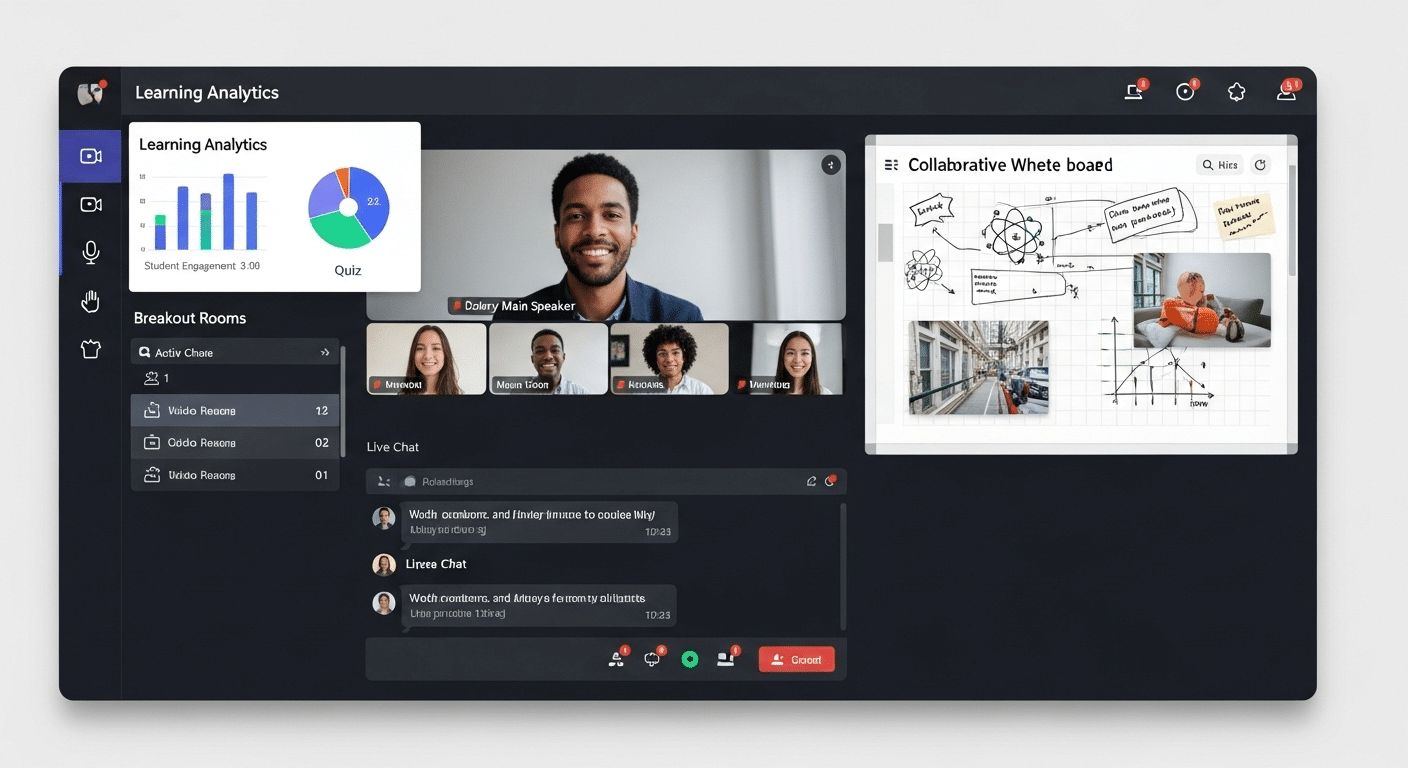
All-in-one virtual classroom platform interface showing video, whiteboard, chat, breakout rooms, and learning analytics

A virtual classroom platform should offer more than just video—it needs to support real teaching, engagement, and learning. The most effective platforms include the following core features:

  • Real-Time Video Conferencing: Reliable audio and HD video for smooth live sessions, even with large groups.
  • Online Whiteboard: Draw diagrams, annotate, and explain concepts visually in real time.
  • Breakout Rooms: Enable small-group work and active learning sessions.
  • Class Recording: Archive sessions for review and asynchronous learning.
  • Chat and Q&A Tools: Keep students involved with real-time text chat, polls, and reactions.
  • Multimedia Support: Share slides, documents, or videos directly within the session.
  • LMS Integration: Sync with systems like Canvas or Moodle for assignments, grades, and tracking.
  • Progress Tracking: Monitor student activity and performance in one place.
  • Ease of Use: A clean, intuitive interface helps both teachers and students stay focused on learning—not troubleshooting.

When all these features work in harmony, the result is a platform that supports both the structure of teaching and the flexibility of online education.


Which Are the Best Virtual Classroom Software Platforms?

Choosing the right virtual classroom platform depends on your teaching style, class size, budget, and technical setup. Here’s a condensed look at the top options, with strengths, limitations, and who they’re best suited for.

1. Apporto – Purpose-Built for Education

Apporto is designed specifically for education—not adapted from corporate tools. It’s browser-based, so no installs are needed.

Features:

  • Built-in virtual whiteboard
  • Student screen viewing in real time
  • Hand-raising, live chat, LMS integration
  • Works well on low-spec devices

Best For: Schools and universities needing a scalable, education-first platform with minimal IT complexity. Try Apporto

2. Zoom – Widely Used and Easy to Adopt

Zoom is familiar, stable, and offers core tools like video conferencing, screen sharing, and breakout rooms.

Features:

  • HD video/audio
  • Polls, reactions, session recording

Limitations:

  • Not built for education
  • Limited grading or classroom management tools

Best For: Institutions needing quick, reliable virtual teaching without deep LMS integration.

3. Microsoft Teams – Strong for Office 365 Schools

For schools already using Microsoft tools, Teams offers native integration and collaboration features.

Features:

  • Integrated with OneNote, Word, and SharePoint
  • Built-in assignment tracking

Limitations:

  • Lacks real-time screen viewing
  • Less intuitive for non-Microsoft users

Best For: Schools standardized on Microsoft ecosystems.

4. Google Classroom + Meet – Free and Simple

A basic but functional solution for K–12 or budget-limited programs.

Features:

  • Google Docs and Calendar integration
  • Easy assignment sharing

Limitations:

  • No breakout rooms
  • Limited live engagement tools

Best For: Primary and secondary schools needing a lightweight, no-cost option.

5. Adobe Connect – Feature-Rich but Complex

Designed for training, Adobe Connect supports advanced interactivity and customization.

Features:

  • Interactive pods and media layouts
  • Participant analytics

Limitations:

  • Higher cost
  • Requires installation and training

Best For: Corporate training and institutions with specialized delivery needs.


How Does a Virtual Classroom Compare to a Traditional Classroom Setting?

Side-by-side comparison of virtual classroom and traditional classroom environments, showing digital learning versus physical teaching spaces.

Virtual classrooms don’t replicate a physical space—they reimagine it. While the end goal of education remains the same, the environment in which learning takes place has changed dramatically. Comparing the virtual classroom to a traditional setting highlights both gains and trade-offs.

Benefits of Virtual Classrooms

  • Flexibility: Students can attend from anywhere—home, work, or on the move.
  • Accessibility: With just a device and an internet connection, anyone can join. No commuting, no logistics.
  • Self-Paced Learning: Many platforms allow class recording, so learners can revisit lectures anytime, reinforcing core concepts at their own speed.

Challenges to Consider

  • Engagement: Without in-person cues, it’s harder to read the room or maintain attention. Tools like polls, breakout rooms, and chat features help, but they require intentional use.
  • Internet Dependency: A poor connection can disrupt learning—especially in regions with limited infrastructure.
  • Screen Fatigue: Spending hours in front of a screen can reduce focus and strain mental energy. Breaks, interaction, and shorter sessions can help offset this.

Live vs. Asynchronous Learning

  • Live classes replicate the feel of a traditional lecture with real-time interaction.
  • Asynchronous learning involves recorded lectures, uploaded materials, and discussion boards.
  • Online tutoring blends both—offering live, personalized help with flexible scheduling.

A virtual classroom isn’t meant to be a perfect replacement for every in-person moment. But when done right, it offers flexibility and inclusivity that the traditional classroom often can’t.


What Are the Core Differences Between a Virtual Classroom and a Learning Management System (LMS)?

It’s easy to confuse a virtual classroom platform with a learning management system—they often appear side by side. But each serves a distinct purpose, and understanding the difference helps you choose the right tools for your school or program.

Feature Virtual Classroom Learning Management System (LMS)
Primary Purpose Live, real-time instruction Course management and content delivery
Main Tools Video conferencing, whiteboards, chat Assignments, grading, course materials
Interaction Style Synchronous (live classes) Mostly asynchronous
Examples Apporto, Zoom, Adobe Connect Moodle, Canvas, Blackboard


A virtual classroom focuses on live interaction—just like a traditional class, but online. It provides tools for engagement: screen sharing, digital whiteboards, breakout rooms, and real-time discussions.

An LMS, on the other hand, organizes everything around the course lifecycle. It’s where students access materials, submit assignments, track progress, and review grades.

The best virtual classroom platforms today combine both. Platforms like Apporto integrate with major learning management systems, letting you manage content and teach live sessions from a unified interface.


What Types of Schools and Institutions Benefit Most from Virtual Learning Platforms?

Connected virtual learning ecosystem serving schools, universities, tutors, and corporate training teams through one digital platform.

Almost every part of the education ecosystem can benefit from a virtual classroom setup—but the impact is especially strong in institutions where access, flexibility, and scale are essential.

School Districts Focused on Equity

Public schools serving diverse populations use virtual platforms to bridge the digital divide. With the right setup, students can participate regardless of geography or economic background.

Higher Education and Remote-First Programs

Universities and colleges have moved toward blended learning models—part in person, part online. For fully remote degrees, a browser-based classroom that works across devices is essential.

Online Tutoring Businesses and Course Creators

Individual educators and edtech entrepreneurs rely on virtual classrooms to create online courses, host live lessons, and scale their offerings without needing physical infrastructure.

Corporate Training and Continuing Education

Companies use virtual classroom software for onboarding, compliance training, and professional development. Live sessions, screen sharing, and recording tools make it easy to deliver consistent training at scale.

The value isn’t limited to any one model. From K-12 schools to global enterprises, virtual learning environments are becoming foundational to modern education and training.


What Are Some Free or Low-Cost Virtual Classroom Software Options?

If you’re working with limited resources—or just exploring what’s out there—several free or low-cost virtual classroom platforms offer solid functionality for teaching and training online. While they may not include every advanced feature, they’re often more than enough for basic instruction and small-group learning.

Google Meet + Classroom

  • Free for schools using Google Workspace for Education
  • Seamless integration with Docs, Slides, and Drive
  • Basic assignment tracking and document sharing
  • Lacks advanced live class features like breakout rooms or screen monitoring

Zoom (Free Version)

  • Popular choice for quick live classes and webinars
  • Supports up to 100 participants with a 40-minute limit per session
  • Includes screen sharing, chat, and recording
  • Requires teacher tech support for managing links, sessions, and security

Apporto – Free Trial-Based Access

  • Offers trial access to its full-featured virtual classroom
  • Browser-based, no software installation required
  • Designed specifically for education with LMS integration, real-time student screen viewing, hand-raising, and whiteboard tools
  • Ideal for testing in a real classroom environment before committing.

Open-Source Alternatives

Platforms like BigBlueButton or Jitsi offer full control with no licensing fees. However, these come with tradeoffs:

  • Requires server hosting and IT expertise
  • Limited support and documentation
  • May lack polish or integration with learning management systems

If you’re just starting out, free tools can help bridge the gap. But as your needs grow—especially with larger classes or more interactive sessions—a paid platform may offer a more consistent and scalable experience.


What Other Factors Should You Consider When Choosing Classroom Software?

Decision-making interface for choosing virtual classroom software, showing usability, security, scalability, and device compatibility factors.

Beyond features and pricing, it’s important to consider how a platform fits your environment, users, and long-term needs.

Browser-Based vs. Installed Software

Browser-based tools like Apporto simplify access—no downloads or installs. Installed apps may offer more power but often require IT support and can create compatibility issues.

Mobile Compatibility

Not all students use laptops. Make sure the platform supports smartphones and tablets, especially in districts focused on digital equity.

Scalability

Whether teaching one class or supporting a district, the platform should scale easily with:

  • Large user support
  • Quick onboarding
  • Flexible classroom creation

Data Privacy

Ensure compliance with FERPA, GDPR, and similar policies. Look for:

  • Data encryption
  • Admin-level controls
  • Clear privacy practices

White-Labeling

Some platforms offer custom branding options like:

  • Branded dashboards
  • Custom domains
  • Tailored user experiences

Support and Training

Even the best tools fall short without help. Prioritize platforms with:

  • Teacher onboarding
  • Live or ticket-based support
  • Helpful documentation

These practical details often make the difference between a platform that works—and one that truly supports learning.


Final Thoughts

There’s no one-size-fits-all answer to choosing the best virtual classroom software. The right platform depends on what you’re teaching, who your learners are, and how you plan to deliver content.

If you need deep LMS integration, real-time monitoring, and equitable access, Apporto offers an education-first solution. For those already using Microsoft 365 or Google tools, Teams and Google Classroom provide simplicity and familiarity. Zoom remains strong for live video-based instruction, while Adobe Connect supports more advanced, enterprise needs.

Focus on what actually supports your teaching—not just what looks good on a checklist. Consider how your students engage, what tech support is available, and whether the platform enhances or hinders your lessons.

Evaluate tools through real-world testing whenever possible. A well-chosen platform can turn online teaching from a temporary fix into a lasting, effective part of your educational strategy.


Frequently Asked Questions (FAQs)


1. What is the best virtual classroom software for schools?

Apporto is often preferred by schools and universities for its education-first design, real-time classroom tools, and seamless LMS integration. It works in the browser and requires no downloads.

2. Can I use a virtual classroom to teach live and recorded lessons?

Yes. Most platforms support live classes with options to record sessions for students who need flexible access. Look for built-in archiving tools or integrations with cloud storage.

3. Is there a difference between virtual classrooms and LMS platforms?

Yes. A virtual classroom focuses on live, interactive sessions. An LMS handles content delivery, assignments, and grades. The best platforms often combine both.

4. What tools help improve teacher-student interaction online?

Core tools include digital whiteboards, hand-raising, breakout rooms, polls, and live chat. Apporto, Zoom, and Adobe Connect include many of these to improve engagement.

5. Are there any free virtual classroom platforms?

Yes. Google Classroom with Meet and Zoom’s free version are common choices. They’re useful for basic needs but may lack features like breakout rooms or LMS integration.

How to Update Citrix Workspace: Everything You Need to Know

Professional managing dashboards on multiple devices while learning how to update Citrix Workspace for improved performance.

Keeping your apps up to date shouldn’t feel like a chore. With Citrix Workspace, it’s more than just routine maintenance, it’s a way to improve how your system works, reduce errors, and deliver a smoother, more secure experience.

Whether you’re running virtual desktops every day or just using a few remote apps, knowing how to update Citrix Workspace can save time and frustration.

Let’s start by looking at why updating actually matters.


Why Should You Update Citrix Workspace?

Team celebrating optimized system performance after successfully applying how to update Citrix Workspace steps.

Staying on the latest version of Citrix Workspace ensures that you’re getting the best possible experience. Updates are designed to fix bugs, close security gaps, and improve stability.

When an update rolls out, it often includes enhancements that improve app performance, compatibility, or responsiveness.

Some Citrix Workspace updates also bring behind-the-scenes changes for IT teams, like improved site operation analytics or configuration options that lead to an analytics-enhanced user experience.

These are quiet improvements, but they can make a big difference over time.

Updates may also include feature enhancements or changes for compliance and reliability. In short, they’re not just about fixing what’s broken, they’re about improving how everything runs.

If you’ve been postponing that update Citrix Workspace reminder, this is your sign to take care of it. You might be surprised how much faster things feel afterward.


How Can You Check the Version of Citrix Workspace You’re Using?

Before you update, it helps to know what version of Citrix Workspace you’re currently running. Fortunately, it only takes a few clicks.

  1. Locate the Citrix Workspace App icon in your system tray (near the clock).
  2. Right-click the icon and choose Advanced Preferences from the dropdown menu.
  3. A new window will appear, look for a section labeled Version.

You’ll typically see a number formatted like 23.5.1.85, where the first digits represent the year and release cycle.

This quick check tells you whether you need to update Citrix Workspace App or if you’re already on the latest version. It’s also useful if IT support asks for your version details.


What Are the Ways to Update Citrix Workspace?

Updating Citrix Workspace isn’t difficult, but the process can differ slightly depending on your system. Whether you’re on Windows, macOS, or managing settings for a group, here are the best methods to ensure you’re always running the most current version.

1. How to Update Citrix Workspace on Windows

If you’re using Windows, there are two main ways to update Citrix Workspace:

Method 1: Update from Advanced Preferences

  1. Find the Citrix Workspace App icon in the system tray.
  2. Right-click the icon and select Advanced Preferences.
  3. Look for an option labeled Update Citrix Workspace App.
  4. Click Check for Updates.
  5. If a new version is available, follow the prompts to download and install it.

This method is quick, especially if the Citrix Workspace App is already installed with update permissions.

Method 2: Manual Install from Citrix Website

  1. Go to the official Citrix download page.
  2. Choose Windows as your platform.
  3. Download the latest version and run the installer.
  4. Follow the instructions to complete the setup.

Automatic Updates (Optional)

During installation, you’ll see an option to enable automatic updates. If selected, Citrix will update itself periodically without asking for input. This helps ensure you’re always current, no manual checks required.

2. How to Update Citrix Workspace on macOS

If you’re on macOS, updating Citrix is just as simple—though the steps differ slightly from Windows.

Using the Auto-Updater:

  1. Open Citrix Workspace App from your Applications folder.
  2. From the top menu, select Citrix Workspace > About Citrix Workspace.
  3. Click Check for Updates.
  4. If a new version is available, click Install and follow the steps.

Manual Download Method:

  1. Visit the Citrix downloads page
  2. Choose macOS as your platform
  3. Download the installer and open the file
  4. Complete the installation as prompted

Make sure you have a stable internet connection during installation. Some enterprise environments may also require entering your email address or server URL when logging in after the update.

Settings generally apply per user, so each person may need to update Citrix separately if using shared systems.


How to Enable or Configure Automatic Updates

If you’re tired of checking manually, you can configure Citrix Workspace updates to install automatically. This option is especially helpful for organizations managing many endpoints or users who prefer a hands-off approach.

How to Enable Auto-Update:

  1. During installation, select the checkbox for automatic updates.
  2. If Citrix is already installed, go to Advanced Preferences and look for Auto-Update Settings.
  3. Set updates to download and install automatically when a new version is available.


What If the Citrix Workspace Update Fails?

IT professional troubleshooting update error message on computer while resolving how to update Citrix Workspace issues.

Even when everything seems right, a Citrix Workspace update can still fail. The most common reasons include a weak internet connection, interrupted downloads, or file corruption during the installation process.

If your update stalls or throws errors like “field is required” or fails to launch afterward, here’s what you can do:

  • Reboot your system and try the update again.
  • If that doesn’t work, go to Advanced Preferences and attempt a repair (if available).
  • As a last resort, uninstall Citrix Workspace completely, download the latest version, and reinstall.

Before you uninstall, consider backing up your preferences or taking note of any custom settings, especially if you’re using corporate configurations.

In rare cases, “machine translated content” errors or regional download issues may appear. If so, contacting your IT team or checking Citrix’s official help center can save you unnecessary troubleshooting.


Does Citrix Use Cookies or Related Technologies in the Update Process?

Yes, when visiting Citrix’s download or documentation pages, you’ll often see a banner stating, “This site uses cookies.” This refers to cookies and related technologies that track session activity for performance and analytics.

You may choose to consent to these tools, or manage your own preferences using the provided settings. These technologies are not malicious or intrusive—they simply help improve navigation, ensure compatibility, and analyze how users interact with update-related content.

The use of these technologies is standard for software providers and has little to no impact on your download or installation process.


Looking for a Faster Alternative to Citrix Workspace?

Apporto logo representing a secure and efficient cloud desktop solution featured in how to update Citrix Workspace guide.

If you’re constantly needing to update Citrix Workspace just to keep things stable, it might be worth exploring a simpler solution. Apporto is a fully browser-based virtual desktop platform—no installs, no patches, and no update headaches.

You don’t have to worry about version control, broken updates, or managing complex settings. Apporto delivers a smooth, fast-loading experience that just works, right from your browser, on any device.

It’s designed for speed, security, and a better user experience without the need to tinker under the hood.

If you’re ready for fewer interruptions and more uptime, Try Apporto Now


Final Thoughts – Why a Simple Update Makes a Big Difference

Taking a few minutes to update Citrix Workspace can save you hours of frustration down the road. New versions often come with fixes for common bugs, smoother app performance, and improvements that support an enhanced user experience.

More often than not, updates resolve things that endless troubleshooting can’t. They keep your workspace stable, secure, and aligned with the latest backend changes from Citrix.

If your system feels slow, unresponsive, or glitchy, start with the basics: check your version, apply the update, and give your desktop a fresh start.

Sometimes, the easiest fix really is the most effective.


Frequently Asked Questions (FAQs)

1. How do I check for updates in Citrix Workspace App?

To check your current version, right-click the Citrix Workspace App icon, choose Advanced Preferences, then click Check for Updates. If a new version is available, you’ll be prompted to download and install it directly from the app interface.

2. Does Citrix Workspace update automatically?

Yes, if auto update is enabled. You can configure Citrix Workspace updates during installation or through the Advanced Preferences menu. In managed environments, IT administrators may control automatic updates centrally across all user devices.

3. Will I lose my settings when I update Citrix Workspace?

No, updating Citrix Workspace does not erase your preferences, sessions, or app access. It simply replaces outdated or buggy core files, improving performance and ensuring better compatibility with backend services or new features.

4. Where can I get the latest version of Citrix Workspace?

You can visit the official Citrix website or cloud portal to download and install the latest version. Ensure you’re connected to a stable internet connection to avoid installation errors or corrupted files during the process.

Virtual Classroom Examples That Actually Work


The last decade has seen an undeniable shift toward virtual learning. What began as a temporary solution for remote work and schooling has now become a central part of how education and training are delivered.

From universities hosting online classes to companies running virtual classroom sessions for global teams, the need for flexible, digital learning spaces is greater than ever.

When evaluating a virtual classroom platform, features alone don’t always tell the full story. Lists of tools—like video conferencing, digital whiteboards, or breakout rooms—sound impressive, but without context they can feel abstract.

That’s why exploring real-life virtual classroom examples is so valuable. They show how these features function in practice and how they enhance the learning process.

In this guide, you’ll see practical examples of virtual classroom software, spanning higher education, K–12, corporate training, and tutoring. Each highlights how different settings use online classrooms to keep students engaged, active, and progressing.


What Is a Virtual Classroom and How Is It Used Today?

A virtual classroom is an interactive online environment where teachers, trainers, or facilitators and learners connect in real time. Unlike a simple video call, a virtual classroom is designed specifically to support structured online learning, offering tools that mirror a physical classroom experience—just in a virtual setting.

It’s helpful to distinguish a virtual classroom from two other types of online tools:

  • A learning management system (LMS) handles content, grades, assignments, and progress tracking—but typically lacks real-time interaction.
  • Video conferencing software (like Zoom or Teams) supports communication but lacks purpose-built classroom features like attendance tracking, breakout rooms, or session recordings tied to learning outcomes.

Most virtual classroom platforms integrate or work alongside an LMS, combining the administrative backbone of course delivery with interactive tools such as:

  • Screen sharing for live demonstrations
  • Digital whiteboards for visual explanations
  • Breakout rooms for small-group collaboration
  • Chat tools, polls, and Q&A for engagement
  • Class recordings for asynchronous review

These features are used across sectors:

  • In online schooling, teachers use them to replicate daily lessons and group work.
  • In corporate training, HR teams run live onboarding sessions and track employee progress.
  • For remote learning, they offer access and flexibility to students who may never step into a physical classroom.

What Are the Most Common Virtual Classroom Use Cases?

Student watching recorded online lessons on a laptop with progress dashboard, learning modules, and discussion board interface

As more educators and trainers adopt virtual learning environments, the ways these platforms are used continue to evolve. Here are the most common use cases you’ll see today:

Synchronous Online Classes

Live, scheduled sessions where instructors and learners interact in real time. These mimic traditional classrooms with lectures, Q&A, and real-time feedback using online classroom software.

Asynchronous Learning

Pre-recorded lessons or tutorials that students can access at their own pace. These formats rely on session recordings, digital modules, and message boards for support.

Hybrid Learning Models

Combines both live sessions and self-paced materials. Often used in online courses and academic programs to balance structure with flexibility.

MOOCs (Massive Open Online Courses)

Large-scale, self-guided courses delivered through platforms like Coursera or edX. While not always true “classrooms,” they often include virtual classroom features like discussions and peer grading.

Remote Team Training

In corporate environments, virtual classroom platforms are used for onboarding, leadership training, and product rollouts—often supported by breakout rooms and screen sharing.

Digital Workshops & Group Projects

Workshops or collaborative sessions built around critical thinking, group work, and hands-on tasks—designed to simulate the feel of a physical classroom in a virtual space.


Virtual Classroom Examples in Different Learning Environments

1. Higher Education: Online Lectures, Labs, and LMS Integration

Universities were among the first to fully adopt virtual classroom platforms at scale. Instructors now deliver large lectures through integrated systems that combine a virtual learning environment with an LMS like Canvas or Moodle. Students access course materials, submit assignments, view grades, and join scheduled virtual sessions—all from the same interface.

These virtual classrooms include tools like screen sharing for presentations, session recordings for review, and attendance tracking for monitoring engagement. Labs are conducted using virtual desktops that allow students to run software remotely, without needing powerful hardware. The result is a flexible system that works across programs, devices, and time zones—giving students a consistent, accessible learning experience.

2. K–12 Online Schooling: Keeping Students Engaged Remotely

K–12 educators use virtual classroom software to maintain structure in the absence of a physical space. Platforms like Google Classroom or Apporto allow teachers to follow a daily schedule of live online lessons, homework submission, and classroom interaction. With tools like digital whiteboards, teachers explain concepts visually—just as they would on a physical board.

To keep students engaged, instructors introduce fun activities, breakout discussions, and reward systems like badges or point tracking. These elements support critical thinking and student participation, even in remote settings. When combined with regular check-ins and message boards, the format helps students stay focused, connected, and active in their own learning.

3. Corporate Training: Remote Onboarding and Upskilling

Companies use online classroom platforms to conduct structured training for new hires, existing staff, and global teams. A typical session might include an instructor-led workshop with screen sharing, followed by breakout rooms for role play or discussion. Sessions are often recorded and stored in the company’s LMS, allowing asynchronous review and on-demand learning.

Features like attendance tracking, real-time polls, and message boards help facilitators assess understanding and keep sessions interactive. For distributed teams, this setup supports virtual meetings across time zones and offers a scalable way to deliver consistent training—without needing a physical location or in-person trainer.

4. Tutoring & Micro-Courses: Personalized Learning at Scale

Virtual classrooms are ideal for tutoring, micro-courses, and flexible short-term learning. Whether it’s a private math lesson or a weekend web development bootcamp, these sessions typically involve one instructor and a small group of learners. The focus is on real-time interaction through video calls, screen sharing, and interactive tools like shared documents or quizzes.

Students benefit from the personalized pace and attention, while instructors track student progress using lightweight tools built into the virtual classroom software. These formats are commonly used for language learning, test prep, or targeted skill-building, offering just enough structure without the overhead of a full LMS.

5. Apporto: A Purpose-Built Virtual Classroom Experience

Apporto is a browser-based virtual classroom platform built specifically for education. It offers a full suite of tools designed to support both synchronous and asynchronous learning, with no software downloads required. What sets it apart is the ability to view live student screens during class—enabling real-time feedback and classroom management that mimics in-person instruction.

Apporto integrates directly with learning management systems, making it easy to connect your existing curriculum with your virtual delivery. Features like digital whiteboards, file sharing, and seamless LMS connections make it a complete virtual classroom setup for institutions looking to move beyond basic video calls. It’s built with equity in mind, ensuring access for students using lower-spec devices or slower internet connections. Try Apporto today


What Features Make a Virtual Classroom Platform Effective?

Instructor using an interactive digital whiteboard to explain concepts during a live virtual class session

Not all virtual classroom software is created equal. While many tools promise flexibility and ease, the most effective platforms offer a blend of features that support instructional goals, student engagement, and learning outcomes.

Here are the essential features to look for:

Video Conferencing

Reliable, high-quality video and audio are the foundation of any virtual classroom. Without clear communication, even the best lesson plan falls flat.

Digital Whiteboards

A digital whiteboard allows for real-time drawing, annotation, and concept explanation—helping instructors replicate the visual learning experience of a traditional classroom.

Breakout Rooms

These support small group discussions, peer feedback, and collaborative projects. They turn a passive lecture into an interactive learning environment.

Student Progress Tracking

Effective platforms offer built-in tools for tracking participation, assignments, and quiz results. This gives instructors visibility into how students are performing without needing a separate system.

Session Recordings

Recording live virtual classroom sessions supports asynchronous learning and provides flexibility for students in different time zones or with schedule conflicts.

Course Management Tools

From assigning courses to distributing course materials, built-in management tools streamline the administrative side of teaching, freeing up time for engagement.

When these features work in harmony, they create a virtual classroom experience that’s not just functional—but interactive, responsive, and conducive to real learning.


How Can You Create a Virtual Classroom That Actually Works?

Teacher planning online course goals and lesson objectives using digital notes, calendars, and learning outcomes dashboard

Creating a virtual classroom isn’t just about picking a platform—it’s about designing a learning experience. To make it effective, it should be intentional, structured, and centered on how students learn best in a virtual environment.

1. Define Your Purpose and Learning Goals

Start with clarity. Are you teaching a live class, running workshops, or offering self-paced modules? Your goals shape everything from the tools you choose to the way you run each session.

2. Choose the Right Platform

Look for a virtual classroom platform that aligns with your subject matter, teaching style, and learner needs. If you need screen monitoring, live chat, and LMS integration, solutions like Apporto may be more effective than generic video tools.

3. Adapt Your Materials

Traditional classroom materials often need adjustment. Break large lectures into digestible segments. Use visual aids. Incorporate polls, chats, or short quizzes to keep students engaged.

4. Build Interaction Into the Structure

Plan for engagement—not just content. Use breakout rooms, group tasks, and regular Q&A breaks. Design your sessions to keep students active, not just present.

A well-structured virtual classroom isn’t just an online copy of your in-person class—it’s a redesigned experience, built for the online learning environment. When done right, it’s just as effective—and in some cases, even better.


Conclusion

There’s no shortage of tools promising to improve virtual learning, but the real insights come from seeing virtual classroom platforms in action. From higher education and K–12 schools to corporate training and micro-courses, the examples you’ve seen in this article show how different setups support engagement, flexibility, and outcomes.

The takeaway is simple: the most effective virtual classrooms are built on more than just features—they’re designed with adaptability, human interaction, and learner experience in mind. Whether you’re using digital whiteboards to visualize ideas or breakout rooms to foster collaboration, it’s the thoughtful integration of tools that makes a virtual classroom work.

If you’re exploring options for a platform that blends real-time instruction, LMS integration, and accessibility for all learners, Apporto offers a purpose-built solution trusted by educational institutions and training teams alike.


Frequently Asked Questions (FAQs)


1. What is an example of a virtual classroom platform?

Platforms like Apporto, Zoom, and Google Classroom are widely used for live, interactive instruction in both academic and corporate settings.

2. How do teachers keep students engaged in online classes?

By using tools like breakout rooms, digital whiteboards, interactive polls, and chat features to create dynamic, student-centered learning experiences.

3. Can a virtual classroom replace traditional classroom training?

In many cases, yes. Virtual classrooms offer greater reach, flexibility, and scalability—though some hands-on training still benefits from in-person instruction.

4. What tools help improve the virtual classroom experience?

Look for screen sharing, class recordings, chat, attendance tracking, and progress monitoring—all available in platforms like Apporto.

5. Are there free platforms to create a virtual classroom?

Yes. Options include Google Meet, Zoom’s free version, and trial access to Apporto, allowing you to explore what works best without upfront cost.

Virtual Classroom Setup: A Complete Guide to Creating a Focused Online Learning Environment

A virtual classroom is more than just a Zoom link and a PowerPoint. It’s a structured online learning environment designed to replicate—and often improve on—the core functions of a physical classroom.

It’s where students, instructors, and learning materials come together in real time or asynchronously, using digital tools to exchange ideas, build knowledge, and complete coursework.

The shift from traditional classrooms to virtual learning spaces was already in motion. Remote learning, once a fringe idea, has now become a mainstream educational model—not only in schools and universities but also in corporate training, continuing education, and certification programs.

But here’s the catch: a virtual classroom is only as effective as the setup behind it. From the platform you choose to the way materials are presented, everything shapes the learning experience.

In this guide, you’ll explore what makes a strong virtual classroom setup and how to build one that actually works.


What Do You Need to Set Up an Effective Virtual Classroom?

Creating an effective virtual classroom setup starts with getting the fundamentals right. Whether you’re teaching a group of students, onboarding new employees, or running professional training, the right foundation ensures the experience is smooth, engaging, and productive.

Here’s what you need:

Stable Internet Connection

A fast, consistent connection is non-negotiable. Lag and dropouts break focus and disrupt the learning flow.

Reliable Virtual Classroom Platform

Choose a platform that fits your class size and format—Zoom, Microsoft Teams, or browser-based solutions like Apporto that require no downloads.

Interactive Tools

Features like breakout rooms, chat, reactions, and screen sharing allow for real-time collaboration and engagement.

Video Conferencing with Live Instruction Support

Look for systems that support live sessions with minimal latency and strong audio/video performance.

Multimedia Resources

You’ll need to prepare materials like video lectures, PDFs, and presentation slides to keep learners visually engaged.

Quiet, Organized Digital Space

The physical setup still matters. Encourage participants to find a distraction-free space, ideally with a headset and neutral background.

When these elements work together, your virtual classroom becomes more than just a digital placeholder—it becomes a true learning environment.


How Do You Choose the Right Virtual Classroom Platform?

Educator assessing platform features on a laptop checklist to plan a virtual classroom setup.

Not all virtual classroom platforms are created equal. The right one should align with your teaching style, class size, and learning goals. Whether you’re hosting a Zoom class, running a live session on Microsoft Teams, or managing an all-in-one environment like Apporto, platform selection matters.

Here’s what to evaluate:

  • Core Features
    Prioritize tools like screen sharing, breakout rooms, waiting room control, and real-time chat. These features make sessions dynamic and manageable.
  • LMS Compatibility
    Your platform should integrate seamlessly with your Learning Management System—whether it’s Canvas, Moodle, or another. This ensures smooth access to materials and assessments.
  • Scalability
    Can the platform handle 10 users? 100? More? Look for systems that support both small groups and large-scale hybrid classes without performance dips.
  • Support for Asynchronous Learning
    It’s not just about going live. Choose a tool that also enables self-paced learning—recorded sessions, downloadable resources, and message boards.

Popular choices include:

  • Zoom – Widely used, flexible, but may need added security layers
  • Microsoft Teams – Great for integrated office environments
  • Apporto – Purpose-built for education and training, with built-in labs and real-time collaboration


What Are the Must-Have Features of a High-Quality Virtual Classroom Solution?

Instructor delivering a lesson with digital displays, demonstrating a hybrid virtual classroom setup.

A well-designed virtual classroom doesn’t just stream a lecture—it enables meaningful learning. The platform you choose should offer more than just video—it should actively support participation, organization, and progress tracking.

Here are the must-have features to look for:

  • Live Instruction Capabilities
    Real-time video and audio streaming are essential for teaching, presentations, and immediate feedback.
  • Breakout Rooms
    Enable small-group collaboration for projects, discussions, or tutoring sessions. Great for maintaining focus and engagement.
  • Screen Sharing & Real-Time Collaboration
    Instructors should be able to walk through lessons, demos, or documents while students follow along live.
  • Interactive Tools
    Features like polls, digital whiteboards, and file sharing turn passive sessions into two-way interactions.
  • Attendance Tracking & Analytics
    Built-in tools that monitor attendance and participation help instructors adapt their approach—and offer data for reporting.
  • Easy Access for Guests or New Learners
    The platform should allow simple joining—no clunky downloads, no long registration forms.

If your classroom platform covers these, you’re not just checking boxes—you’re building a system designed to scale and succeed.


How Do You Create a Focused and Engaging Online Learning Environment?

A virtual classroom needs more than tools—it needs intention. A scattered session can leave learners disengaged, no matter how advanced the platform. To create a focused and engaging online learning environment, you’ll want to combine structure, interaction, and visual clarity.

Here’s how:

  • Establish a Clear Structure
    Begin each session with an overview, transition into teaching, allow time for Q&A, and close with a recap. Predictability helps learners stay oriented.
  • Use Online Tools to Encourage Participation
    Utilize chat, reactions (thumbs-up, emojis), or polls to check in and collect feedback mid-session.
  • Visual Support for Core Concepts
    Supplement verbal instruction with slides, annotated documents, or screen-shared demonstrations to reinforce ideas.
  • Keep Sessions Concise
    Aim for sessions under 60 minutes. Fatigue sets in faster online. If the topic requires more time, break it into segments.
  • Encourage Cameras On
    Seeing faces fosters accountability. If not possible, ask for typed check-ins to keep attention alive.
  • Incorporate Group Work
    Use breakout rooms or collaborative docs to let students apply what they’ve learned through peer interaction.

When structure meets interaction, engagement naturally follows.


What Should You Do to Support Teachers and Instructors in Virtual Classes?

Team reviewing digital tools on a computer as part of an effective virtual classroom setup.

Even the best virtual classroom setup falls flat without confident, well-equipped instructors. Teachers are no longer just delivering lectures—they’re managing digital spaces, troubleshooting tech, and redesigning content for a new medium. Supporting them isn’t optional—it’s foundational.

Here’s how to do it effectively:

  • Training on Tools
    Provide hands-on training for both the Learning Management System (LMS) and the virtual classroom platform. Confidence with the tools improves delivery and reduces downtime.
  • Course Material Support
    Help educators create compelling slides, interactive videos, and digital documents. Even simple formatting makes a difference in learner comprehension.
  • Templates and Planning Resources
    Offer pre-built templates for lesson plans, breakout activities, and assessments to reduce planning fatigue.
  • Reliable Technical Support
    Ensure instructors know where to go when something breaks. Fast, human help matters in high-stress moments.
  • Foster Peer Collaboration
    Encourage instructors to share strategies, swap materials, and co-teach where appropriate.

Teaching virtually requires a different skill set. With the right support, instructors become more than capable—they become innovators in digital education.


What Are the Best Practices for Delivering Live and Asynchronous Instruction?

Effective virtual classrooms blend live interaction with asynchronous flexibility. Each mode has strengths—knowing when and how to use them is secret to delivering a complete learning experience.

Use live video sessions when:

  • Hosting Q&As, discussions, or feedback loops
  • Introducing complex or nuanced material
  • Building rapport and classroom presence

Use asynchronous content for:

  • Pre-recorded lectures or walkthroughs
  • Readings, quizzes, and reflections
  • Learners in different time zones or with schedule constraints

To create community in both modes:

  • Use discussion boards or chat threads that stay active
  • Schedule optional live office hours
  • Encourage peer review and group projects

Flexibility isn’t just convenient—it’s pedagogically sound. Students retain more when they can revisit materials, pace themselves, and interact meaningfully.

Tools like a well-integrated LMS + virtual classroom platform allow seamless switching between synchronous and asynchronous content. The goal is balance—where structure meets autonomy and learning happens both in real-time and on demand.


How Can Cloud-Based Platforms Like Apporto Simplify Your Virtual Classroom Setup?

Apporto logo representing a cloud-based virtual desktop solution compatible with the azure virtual desktop client.

Managing a virtual classroom shouldn’t feel like managing a tech support hotline. That’s where cloud-based platforms like Apporto stand out—offering simplicity, flexibility, and scalability without the complexity of traditional virtual learning setups.

Apporto is fully browser-based, meaning there’s no need for software downloads or system compatibility headaches. Learners and instructors can access the virtual classroom with just a link—from any device, anywhere.

The platform includes:

  • Built-in virtual classroom tools
  • LMS integration for seamless course delivery
  • Live collaboration with real-time screen sharing, breakout rooms, and engagement features like polls and hand-raising

Apporto supports hybrid learning for both higher education and corporate training, allowing live participation and asynchronous access on the same platform.

For IT teams, setup is fast, cloud-based, and scalable—no installs, no manual updates. Whether it’s 30 students or 3,000 employees, Apporto ensures a smooth, consistent experience. Try Apporto now


Final Thoughts

A virtual classroom only works when it blends the right tools with thoughtful structure. It’s not about chasing the latest app or adding more features—it’s about creating a space that’s easy to access, consistent in delivery, and genuinely engaging for learners. The technology should serve the experience, not complicate it. When instructors feel supported, students stay connected, and content is delivered clearly, the classroom—virtual or not—becomes effective.

Whether you’re reworking an outdated system or launching from scratch, consider how your platform, training approach, and content flow together. Small improvements in setup can lead to major gains in focus and outcomes. And if your current tools aren’t keeping up, it may be time to explore solutions designed for the realities of online learning. Cloud-native platforms like Apporto offer a more seamless, scalable way forward—without the usual friction.


Frequently Asked Questions (FAQs)


1. Do I need special software to run a virtual classroom?

Not necessarily. Many modern platforms, like Apporto, run entirely in the browser with no installations required. What matters more is that your platform supports features like video conferencing, screen sharing, and engagement tools.

2. Can I use a virtual classroom for hybrid learning?

Yes. Virtual classrooms are ideal for hybrid models, allowing some participants to join in person while others attend remotely. Look for platforms that offer reliable streaming, breakout rooms, and integration with in-person teaching tools.

3. How can I make online classes more interactive?

Use features like polls, chat, breakout sessions, and collaborative whiteboards. Keeping students involved with real-time activities and peer interaction is secret to improving focus and knowledge retention.

4. What’s the difference between LMS and a virtual classroom platform?

An LMS manages content, assignments, and grading, while a virtual classroom platform handles live instruction and interaction. The best setups combine both for a complete learning experience.

Windows 365 vs Azure Virtual Desktop: A Detailed Comparison

Visual comparison of Windows 365 and Azure Virtual Desktop showing two distinct cloud computing paths symbolizing user choice.

The way people work has changed. Remote access is no longer a luxury — it’s a requirement. As businesses adapt to hybrid and distributed teams, the demand for virtual desktop solutions continues to grow.

The question isn’t whether you need one — it’s which one.

Two of Microsoft’s flagship offerings are often compared: Windows 365 (Cloud PC) and Azure Virtual Desktop (AVD). On the surface, they seem similar.

Both let you deliver Windows desktops from the cloud. Both offer flexibility, security, and centralized control. But once you dig deeper, the differences are significant — especially in cost, complexity, and use case.

This guide breaks it all down. You’ll learn how each solution works, how they compare, what they cost, and which one makes the most sense for your organization — whether you’re managing five users or five thousand.

Let’s unpack Windows 365 vs Azure Virtual Desktop and find the best fit for how you work now.


What Is Windows 365 and How Does It Work?

Professional using multiple devices connected to a Windows 365 Cloud PC, demonstrating cloud-based access across desktop, laptop, and mobile

Windows 365 is Microsoft’s simplified Cloud PC offering — a virtual Windows desktop that runs entirely in the cloud and behaves like a personal computer. It’s designed to give users secure, persistent access to a Windows environment without needing physical hardware or complex backend infrastructure.

When you subscribe to Windows 365, you’re essentially renting a dedicated cloud PC on a fixed monthly price. That cloud PC is always on, preconfigured with Windows 10 or 11, and tied to a specific user. Every time they log in — whether from a laptop, tablet, or browser — they return to the same desktop with the same files, settings, and apps.

Standout Features:

  • Fixed Pricing: Monthly billing makes it easier to budget.
  • Simplicity: No need for deep Azure expertise or server configuration.
  • Remote Access: Users can connect from anywhere using the Remote Desktop app or browser.
  • Central Management: IT admins manage devices and settings through Microsoft Intune, Microsoft’s endpoint management solution.

Windows 365 also integrates with Azure Active Directory, giving you control over user access and security policies.

Who Is It For?

  • Task Workers who need consistent, lightweight desktop access
  • Small and Medium Businesses (SMBs) with limited IT staff
  • Non-technical administrators who want to deploy desktops quickly without dealing with Azure infrastructure

If you need a personal desktop in the cloud that just works — with predictable billing and minimal configuration — Windows 365 is built for that.

But if your environment demands more flexibility or multi-user support, another option may be more suitable. Let’s take a look at Azure Virtual Desktop.


What Is Azure Virtual Desktop and How Does It Work?

IT administrator managing Azure Virtual Desktop performance and user sessions through the Microsoft Azure management dashboard

Azure Virtual Desktop (AVD) is Microsoft’s fully flexible virtual desktop infrastructure (VDI) platform. Unlike Windows 365, which delivers one Cloud PC per user, AVD allows you to host many users on shared resources — all built on top of Microsoft Azure.

AVD gives you complete control over the virtual desktop environment — from the operating system to the VM size, storage, and scaling policies. You can deliver full desktops or specific applications, assign access dynamically, and adjust the backend architecture to fit your performance and budget needs.

Main Components:

  • Session Hosts: These are the virtual machines (VMs) where user sessions actually run.
  • Control Plane: Managed by Microsoft, this handles brokering, diagnostics, and load balancing.
  • Custom Images: Build and deploy your own desktop images with pre-installed apps and configurations.
  • FSLogix Profile Storage: Enables fast logins and roaming profiles by separating user data from the VM.

AVD is deployed and managed through the Azure portal, giving you access to a vast ecosystem of services like identity management, storage, monitoring, and backup.

Who Is It For?

  • Organizations with complex IT environments
  • Teams needing high customization and multi-session capabilities
  • Enterprises that already operate within the Microsoft Azure ecosystem
  • IT admins who want granular control over policies, performance, and cost

Azure Virtual Desktop is powerful — but it requires a deeper technical foundation. It’s not a plug-and-play cloud solution. It’s a build-it-your-way platform.

Next, let’s compare Windows 365 and AVD side by side to see where each one fits best.


What Are the Notable Differences Between Windows 365 and Azure Virtual Desktop?

While both Windows 365 and Azure Virtual Desktop (AVD) deliver cloud-hosted desktops, they do so in very different ways. The right choice depends on how much control you need, how many users you’re supporting, and how much flexibility you’re willing to manage.

Here’s a side-by-side breakdown to clarify where these solutions diverge:

Feature Windows 365 Azure Virtual Desktop
Pricing Model Fixed monthly price Pay-as-you-go (based on actual usage)
Use Case Simplicity for knowledge workers Flexibility for advanced IT environments
Setup Quick and simple Requires Azure and AVD deployment knowledge
Cost Predictability High Low (unless actively monitored)
Support for Multiple Users Single user per Cloud PC Multiple concurrent users per session host
OS Options Windows 10/11 Enterprise only Windows 10/11, Windows Server
Scalability Manual Auto-scaling with dynamic host pool configuration
Management Tools Microsoft Intune Azure Portal, Active Directory, CLI tools


Identifies:

  • Windows 365 Cloud PCs are persistent, single-user machines. You set them up once, and each user logs in to the same environment every time.
  • AVD is a shared-resource model. You can host multiple users on a single VM (session host), which increases efficiency for task workers or seasonal teams.
  • AVD is also far more highly customizable. You can deploy custom images, integrate with third-party tools, and tailor the environment for different departments.

The distinction comes down to how much you want to manage. If you want full control over the virtual desktop and Windows environment, AVD gives you that. If you just want desktops that work out of the box, Windows 365 is your answer.

Next, let’s dig deeper into how pricing models affect your decision.


How Do Pricing Models Differ Between Windows 365 and Azure Virtual Desktop?

Business team reviewing Windows 365 vs Azure Virtual Desktop pricing models on a presentation screen during a meeting.

Understanding the pricing models is essential — because while both services offer virtual desktops, how you pay for them can vary wildly depending on your usage and setup.

Windows 365: Predictable Monthly Pricing

With Windows 365, you pay a flat monthly fee per user. This includes the Cloud PC, operating system, storage, and compute resources. Pricing is determined by the specs you choose (e.g., number of vCPUs, RAM, and storage), and it remains fixed regardless of usage.

  • Ideal for organizations that prioritize cost predictability
  • Easy to budget for — no surprises
  • Suitable for knowledge workers who need persistent access

Azure Virtual Desktop: Usage-Based Pricing

In contrast, Azure Virtual Desktop operates on a pay-as-you-go model. You only pay for what you use — but that also means pricing is more dynamic and harder to predict.

Costs can include:

  • Compute Costs: Time your VMs are running
  • Storage Costs: OS disks, FSLogix profile containers, and backups
  • Bandwidth: Outbound data transfers
  • Azure Infrastructure: Virtual networks, Azure Active Directory integration, and other services

To manage costs, you can:

  • Use reserved instances for long-term savings
  • Turn off idle VMs when not in use
  • Implement auto-scaling to match demand
  • Monitor actual usage via the Azure Portal or cost management tools

Wrapup:

  • Windows 365 = simplicity, with a fixed monthly price
  • AVD = flexibility, but requires ongoing monitoring to achieve cost efficiency

Choosing between the two often comes down to how predictable — or how optimized — you need your actual pricing to be.


Which Solution Is Better for Medium-Sized Businesses?

Side-by-side illustration comparing user experiences and workflows between Windows 365 and Azure Virtual Desktop environments.

When evaluating Windows 365 vs Azure Virtual Desktop, medium-sized businesses fall into an interesting space. You likely need scalable infrastructure, but not at the level of a global enterprise. Your IT team may be efficient — but stretched thin. And your users? Probably a mix of both task workers and knowledge workers.


Task Workers vs. Knowledge Workers

  • Task workers — like customer service reps, seasonal employees, or support roles — often don’t need full-time access to high-performance machines. A shared-resource setup using AVD can optimize compute costs while serving this group well.
  • Knowledge workers, on the other hand, benefit from a persistent, consistent desktop. For them, Windows 365 offers simplicity and reliability.

IT Staffing Considerations

Windows 365 is designed for environments with lean IT teams. If your admins aren’t deeply familiar with Azure infrastructure, they can still manage Cloud PCs via Microsoft Intune and have users up and running in minutes.

Azure Virtual Desktop, however, assumes you have technical depth — or the resources to build it. It integrates with Active Directory, uses custom networking, and benefits from DevOps practices.

Control vs. Simplicity

If your business needs fine-grained control, the ability to support custom images, or to deploy desktops by department, AVD offers the flexibility. But if you’re looking for a clean, hands-off cloud solution for end users, Windows 365 is the prime example of ease.

Ultimately, the best choice depends on how much time and expertise you’re willing to invest — and what level of customization your workflows demand.


What Are the Pros and Cons of Each Platform?

Before making your decision, it’s worth mapping out the clear advantages and drawbacks of each solution. Here’s a breakdown to help clarify the trade-offs.

Pros of Windows 365

  • Simple to deploy: Minimal setup. Users can be provisioned in minutes.
  • Fixed monthly pricing: No guesswork. Easy for finance teams to budget.
  • Minimal management required: Managed updates, centralized control via Intune, and no complex backend.

Cons of Windows 365

  • Less customizable: Limited ability to configure virtual machines or operating system behaviors.
  • Single session per user: You’ll need one Cloud PC per user, which can increase costs for larger teams.
  • Less backend control: Microsoft handles most of the infrastructure. Helpful for some — restrictive for others.

Pros of Azure Virtual Desktop

  • Highly flexible and scalable: Configure exactly what you need — from OS to VM size.
  • Multi-session support: Multiple users can share the same virtual machine, improving cost efficiency.
  • Deep Azure integration: Works natively with Azure resources, Active Directory, and other cloud services.

Cons of Azure Virtual Desktop

  • Requires Azure expertise: Setup isn’t intuitive for non-technical teams.
  • Costs can spike: Without monitoring VM uptime and storage usage, actual pricing can climb quickly.
  • More to manage: You’ll need to handle scaling, user profiles, and resource optimization.

Both platforms are strong — but they serve different needs. Coming up next: how do security and management capabilities stack up?


What Are the Security and Management Differences?

Team of developers collaborating in an office, analyzing Windows 365 and Azure Virtual Desktop interfaces on dual monitors.

Security and centralized management are essential considerations for any virtual desktop deployment. Both Windows 365 and Azure Virtual Desktop (AVD) offer robust security capabilities — but they approach them in fundamentally different ways.

Windows 365: Managed Simplicity

Microsoft Intune plays a central role in managing Windows 365 Cloud PCs. Intune allows you to enforce compliance policies, push app installations, and remotely wipe or lock devices. Since the infrastructure is abstracted away, you don’t need to think about the underlying servers, patching cycles, or network configuration. Microsoft handles it all.

Strong benefits include:

  • Preconfigured security features like endpoint protection and threat detection
  • Centralized user and device policies via Microsoft Endpoint Manager
  • Simple role-based access with Azure Active Directory integration

This setup favors organizations seeking secure, low-maintenance desktops.

Azure Virtual Desktop: Granular Control

With AVD, you’re responsible for most of the configuration — which means greater flexibility and more powerful tools, but also more complexity.

Security in AVD is enforced through:

You can also control patching cycles, OS updates, and app deployments via your own schedule, giving you full command over the environment.

If your organization needs detailed oversight of access restrictions, custom security configurations, and audit logs, AVD provides a deep toolkit — assuming you have the Azure expertise to manage it.

Let’s now compare the day-to-day experience of deploying and managing both platforms.


Which Is Easier to Deploy and Manage Day-to-Day?

Ease of deployment and daily management often determine how quickly a solution fits into your environment. On this front, Windows 365 and Azure Virtual Desktop (AVD) differ quite a bit.

Windows 365: Plug-and-Play Simplicity

With Windows 365, there’s no infrastructure to build or tune. You assign a Cloud PC to a user through Microsoft Intune, and they log in. That’s it.

  • No need for advanced knowledge of Azure environments
  • Patching, updates, and infrastructure maintenance are handled by Microsoft
  • Self-service provisioning and centralized policy enforcement make it easy for small IT teams to manage desktops efficiently

This makes Windows 365 especially attractive for companies without a dedicated Azure admin.

Azure Virtual Desktop: Custom, But Complex

AVD offers deeper control but requires more configuration.

  • You manage the control plane, session hosts, and scaling policies
  • It relies on Microsoft’s Azure subscription and services like virtual networks, NSGs, and identity tools
  • You’ll likely need third-party tools or scripting (e.g., PowerShell, Azure CLI) for automation at scale

While AVD can be tailored to exact business needs, it comes with a steeper learning curve. It’s a better fit for organizations with skilled IT teams already comfortable with the Azure portal and related tools.


Looking for a Simpler, More Predictable Alternative?

Apporto company logo representing cloud-based virtual desktop and digital workspace solutions.

If the trade-off between control and complexity still feels like too much, there’s another option. Apporto delivers a fully managed, browser-based virtual desktop experience without the infrastructure burden of AVD or the per-user licensing model of Windows 365.

Built specifically for education and mid-sized organizations, Apporto offers:

  • Instant access to Cloud PCs via your browser
  • No Azure subscription or backend setup
  • Built-in cost efficiency and simplified pricing
  • Support for multi-user environments and role-based access
  • White-glove support and zero maintenance on your part

If you need desktops that scale without surprises — and you’d rather skip infrastructure costs entirely — try Apporto now.


Final Thoughts: Should You Choose Windows 365 or Azure Virtual Desktop?

Choosing between Windows 365 and Azure Virtual Desktop (AVD) comes down to your organization’s unique mix of needs, resources, and scale.

If you value predictable simplicity, have a smaller IT team, and want to get up and running fast, Windows 365 Cloud PCs offer a straightforward path with minimal overhead. The pricing is fixed, the setup is quick, and the management is centralized through tools like Microsoft Intune.

On the other hand, if you need advanced flexibility, support for multiple concurrent users, or a highly customized virtual desktop environment — and have the Azure skill set to support it — Azure Virtual Desktop is a better fit. Just be prepared for more configuration and tighter cost monitoring.

And if both seem like too much to manage, consider a third path: Apporto. It bridges the gap with an all-in-one cloud solution that cuts complexity and keeps costs transparent.

Whichever route you choose, make sure it aligns with how your team works — not just what the tech promises.


Frequently Asked Questions (FAQs)

1. What is the main difference between Windows 365 and Azure Virtual Desktop?

Windows 365 offers fixed-cost Cloud PCs for individual users, designed for simplicity and predictable billing. Azure Virtual Desktop (AVD) is a flexible, usage-based solution that supports multiple users per virtual machine and requires deeper Azure knowledge to configure and manage.

2. Can multiple users share a Windows 365 Cloud PC?

No. Windows 365 Cloud PCs are built for single users only. Each Cloud PC is assigned to one person, offering a persistent experience. If you need concurrent users or shared resources, Azure Virtual Desktop is the more appropriate choice.

3. Which is cheaper: AVD or Windows 365?

It depends on usage. Windows 365 has a fixed monthly cost, making it more predictable but potentially expensive for light users. AVD can offer cost savings through multi-session support and auto-scaling, but costs can spike without careful monitoring of usage and resources.

4. Do both solutions support custom images?

Only Azure Virtual Desktop supports custom images natively. You can build and deploy fully configured desktops tailored to your organization’s needs. Windows 365 does not currently support custom images in the same way, which limits flexibility for IT administrators.

5. Is Windows 365 more secure than AVD?

Both platforms are secure, but they differ in control. Windows 365 provides built-in security features with minimal configuration. AVD, on the other hand, allows you to customize user profiles, access policies, and integrate with broader Azure virtual security tools — offering more control but requiring more effort.

6. Which one is better for a small IT team?

For small IT teams with limited Azure experience, Windows 365 Cloud PCs are easier to deploy and manage. They don’t require configuring infrastructure or monitoring usage. AVD is better suited for teams with the skills to manage Azure resources and optimize for performance.

How to Configure Azure Virtual Desktop: A Step-by-Step Guide


Azure Virtual Desktop (AVD) is Microsoft’s cloud-based solution that lets users securely access desktops and applications from anywhere, using any device.

Instead of relying on physical machines, you deliver a virtual desktop experience through the Azure cloud—flexible, scalable, and centrally managed.

As hybrid and remote work continue to reshape how organizations operate, Virtual desktop infrastructure (VDI) has become a critical tool for IT teams looking to maintain security, reduce hardware costs, and support distributed users.

It removes the complexity of managing local machines while keeping users productive with familiar Windows environments.

In this guide, you’ll walk through a practical, step-by-step approach to configuring Azure Virtual Desktop—from setup prerequisites to user access. No fluff—just what you need to get it working.


What Do You Need Before You Configure Azure Virtual Desktop?

Before diving into the setup, it’s important to ensure a few foundational pieces are in place. Azure Virtual Desktop depends on having the right infrastructure, permissions, and access controls ready to go. Here’s a quick checklist of what you’ll need:

  • An active Azure subscription – This is where your virtual machines and services will live.
  • Microsoft Entra ID (formerly Azure Active Directory) – You’ll use this to manage user identities and access.
  • A user account with appropriate Role-Based Access Control (RBAC) – This should have permissions to create and manage resources.
  • A virtual network (VNet) – Ensure it’s configured with a Network Security Group (NSG) to manage traffic and protect your environment.
  • Basic knowledge of directory services and operating systems – Familiarity with Active Directory, Windows 10/11, or multi-session Windows Server is helpful.

Depending on your licensing model, you may also need Microsoft 365 or Windows Enterprise licenses to use certain AVD features.

With these essentials in place, you’re ready to move on to configuring your host pool.


How Do You Create a Host Pool in Azure?

Host pool creation settings in the Azure portal with VM and load balancing options, highlighting how to configure Azure Virtual Desktop host pools.

A host pool in Azure Virtual Desktop is a collection of session hosts—virtual machines that deliver desktops and applications to users. Think of it as the engine that powers the virtual desktop experience. All users assigned to the pool share access to these session hosts, which can be scaled based on usage.

To create a host pool in the Azure portal, start by searching for “Azure Virtual Desktop”, then select “Host pools” and click “+ Create”.

You’ll need to:

  • Enter a name and optional name prefix to identify your pool
  • Select the Azure region where your resources will be hosted
  • Define the number of virtual machines you want to deploy
  • Choose the disk type (e.g., Premium SSD for better performance)
  • Set the session limit (how many users per session host)
  • Choose an operating system, like Windows 10 multi-session, for shared environments

This forms the foundation of your AVD setup—where scalability and user access begin.


How Do You Configure the Virtual Machines for Your Desktop Users?

Once your host pool is created, the next step is configuring the virtual machines (VMs) that users will connect to. Start by selecting the appropriate VM size and image based on the performance needs of your users. Lightweight tasks may require fewer resources, while power users might need higher specs.

During setup, you’ll need to choose the domain to join—either Microsoft Entra ID or a hybrid setup if you’re connecting to an on-premises Active Directory. Then, create a local administrator account by setting a username and password that will allow initial configuration.

Under network settings, make sure your VMs are attached to the correct virtual network and subnet. Review public inbound ports—typically, these should be disabled for better security unless required for your use case.

Finally, choose your storage option—Premium SSD is recommended for better speed and reliability. With these configurations in place, your environment is now ready to support real users.


What’s the Role of Application Groups in Azure Virtual Desktop?

Azure portal interface for creating an Application Group and selecting RemoteApps, demonstrating how to configure Azure Virtual Desktop access.

Application Groups define what users can access within Azure Virtual Desktop. These groups control whether a user receives a full desktop experience or specific RemoteApps—individual applications published through AVD.

There are two types:

  • Desktop Application Group – Grants users access to a full virtual desktop
  • RemoteApp Group – Delivers specific apps without the full desktop interface

When setting up an application group, you choose the desktops and applications you want to deploy, then assign users from Microsoft Entra ID. It’s essential to match the group to the right host pool and ensure user permissions are correctly configured.

The group select process is tied to Role-Based Access Control (RBAC), which allows you to manage who can access what. With proper planning, application groups help ensure that users get exactly what they need—nothing more, nothing less—while keeping administration streamlined.


How Do You Create and Register a Workspace in Azure Virtual Desktop?

A Workspace in Azure Virtual Desktop acts as the user-facing portal for accessing assigned desktops and applications. It’s the layer that ties together application groups and user access, giving your team a clean, centralized place to connect.

To create a Workspace, go to the Azure Portal, search for and select “Azure Virtual Desktop,” then choose Workspaces and click “+ Create.” Enter a name, select the resource group, and link it to the relevant application group from your earlier setup.

After filling in the details, click Review + Create, then deploy the workspace.

Once the workspace is registered, users can connect to their remote desktops and applications through the Remote Desktop client or web portal. The workspace acts as the gateway—giving users what they need, without exposing the infrastructure behind it.


How Do You Connect to Azure Virtual Desktop as a User?

Azure Virtual Desktop running across multiple devices including desktop, tablet, and phone, showing user connectivity after configuring Azure Virtual Desktop

Connecting to Azure Virtual Desktop is straightforward. First, download and install the Remote Desktop client from Microsoft’s official site. It’s available for Windows, macOS, iOS, and Android.

Once installed, users sign in using their Microsoft Entra ID—this grants access to any assigned workspaces, desktops, or RemoteApps.

There are two ways to connect:

  • Through the Remote Desktop app, which provides full functionality
  • Or directly through a web browser, offering a lightweight, no-install option

Single sign-on support simplifies access, especially in managed environments. Once connected, session settings (like resolution or multi-monitor support) are applied automatically based on the user’s device.

Azure Virtual Desktop is device-agnostic, meaning users can connect securely from nearly anywhere—without sacrificing performance or experience.


How Can You Manage and Monitor Azure Virtual Desktop After Setup?

Once your Azure Virtual Desktop environment is live, ongoing management and monitoring become essential. The Azure Portal provides built-in tools to track performance, usage, and session activity.

You can:

  • Monitor session hosts for health and uptime
  • View session limits, user activity, and connection status
  • Adjust scaling policies to align with peak usage periods

Azure’s insights dashboard offers real-time analytics to help you troubleshoot bottlenecks or underutilized resources. If something’s off—slow login times, disconnected sessions—you’ll see it.

Managing updates and configurations becomes easier through centralized controls. You’re also able to enforce policies, collect user feedback, and integrate with external tools for extended insights.

This is where Azure really shines: a consistent, cloud-native environment that gives IT teams the control they need—without endless maintenance overhead.


Why Apporto Is a Simplified Alternative to Azure Virtual Desktop

Apporto logo representing a cloud-based virtual desktop solution compatible with the azure virtual desktop client.

If Azure Virtual Desktop feels complex to configure—or more than your team needs—Apporto offers a streamlined alternative. It’s a fully browser-based virtual desktop solution that eliminates the need to manage infrastructure like host pools, session hosts, or networking layers. For another comparison, see how Citrix stacks up against other virtual desktop solutions.

With zero client installs, built-in LMS integration, and real-time collaboration tools, Apporto is built for speed, scalability, and simplicity. Whether you’re delivering labs for higher education or managing remote desktops for business users, Apporto delivers secure, consistent performance—with less setup and ongoing maintenance.

For organizations that want the benefits of virtual desktops without the heavy lift, Apporto offers a smarter path forward. Try Apporto today


Final Thoughts

Azure Virtual Desktop offers impressive flexibility, control, and enterprise-grade scalability, making it a strong option for teams managing complex environments or large user bases. To better understand how Azure Virtual Desktop compares with other solutions, such as cloud desktops vs. VDI, it’s helpful to look at the benefits, costs, and key differences between the two approaches. It supports a wide range of configurations, integrates with Microsoft services, and enables secure access to desktops and apps from anywhere.

But with great flexibility comes greater complexity. Before committing to a full deployment, consider running a test configuration to better understand how it fits into your infrastructure, user needs, and support capacity.

If you need tight integration with Microsoft’s ecosystem and have the IT resources to manage it, Azure Virtual Desktop is a powerful solution. For others, simpler alternatives may offer better ROI and less operational overhead. The secret is alignment.


Frequently Asked Questions (FAQs)


1. What is a host pool in Azure Virtual Desktop?

A host pool is a collection of virtual machines that users connect to. These machines, called session hosts, deliver the desktops and apps assigned to users through application groups.

2. Can I use Azure AD instead of traditional Active Directory?

Yes, Azure Virtual Desktop now supports Microsoft Entra ID (formerly Azure AD) for cloud-only environments. Hybrid options are still available if you need to join on-premises domains.

3. Do I need to create a workspace for each user?

No. A single workspace can serve multiple users by linking it to one or more application groups. Users only see the desktops and apps assigned to them.
4. What’s the difference between application group and workspace?

An application group defines what users can access—full desktops or specific apps. A workspace is the portal where those apps and desktops are delivered and accessed by users.
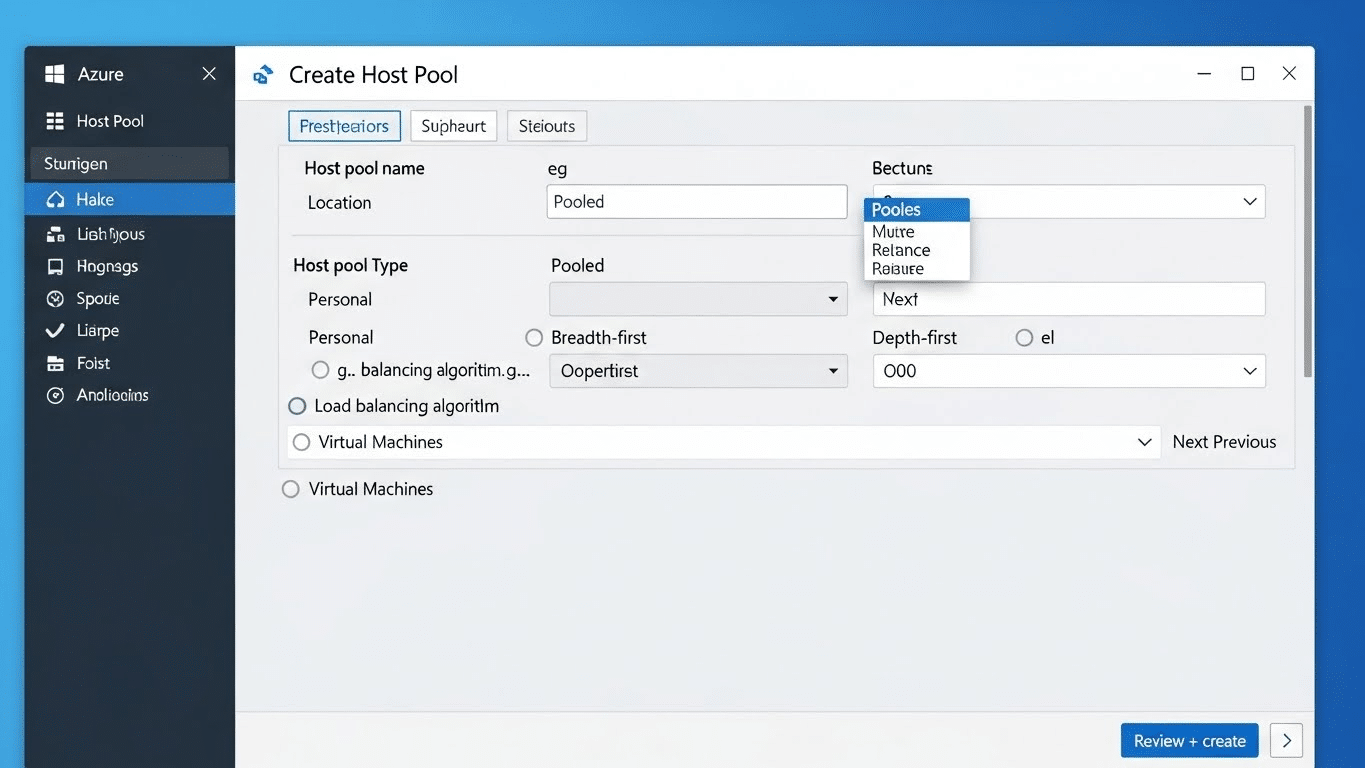
What Is Azure Virtual Desktop? Full Cloud VDI Overview

Modern office setup with multiple Windows desktops and Azure cloud network visualization, representing what is Azure Virtual Desktop and its cloud-based VDI architecture.

In today’s cloud-first world, the way organizations deliver desktops and applications has changed dramatically. Azure Virtual Desktop (AVD) — a service built on the Microsoft Azure platform — is at the forefront of this transformation.

Whether you’re managing remote teams, scaling IT resources, or navigating tighter security and compliance needs, virtual desktop infrastructure (VDI) is no longer optional. It’s essential.

AVD provides a centralized, cloud-based way to deliver full Windows desktops and apps to users — from any device, anywhere. To learn more about this technology, see what virtual desktop infrastructure (VDI) is.

But what exactly is Azure Virtual Desktop? How does it differ from traditional solutions, and why are more organizations shifting away from on-prem setups toward cloud computing environments like Azure?

This guide breaks down everything you need to know: how AVD works, what it offers, where it fits, and how to evaluate whether it’s right for your organization.

Let’s start with the fundamentals.


What Exactly Is Azure Virtual Desktop and How Does It Work?

IT professional managing Azure Virtual Desktop dashboard and monitoring virtual machine performance, demonstrating what is Azure Virtual Desktop for businesses

Azure Virtual Desktop (AVD) is Microsoft’s modern solution for virtual desktop infrastructure (VDI) — a system that lets users access a complete Windows desktop or specific applications hosted in the cloud, not on local machines.

You connect via the internet, using a remote desktop client or a web browser. The experience looks and feels like using a traditional PC, but everything — apps, data, user settings — is actually running in the cloud.

How It Evolved

AVD was previously known as Windows Virtual Desktop, which caused confusion as it sounded more like a product than a service. The updated name reflects its purpose better: a virtual desktop service built entirely on Microsoft Azure.

Unlike traditional VDI, which often runs on in-house servers and demands a significant infrastructure investment, AVD lives in Microsoft’s data centers. This reduces complexity, lowers costs, and makes scaling much easier.

Main Components of Azure Virtual Desktop

Component Description
Host Pools Collections of virtual machines (VMs) that deliver desktops or apps
Session Hosts The VMs inside a host pool that users actually connect to
App Groups Sets of desktop apps or full desktops assigned to users
Remote Desktop Client The tool users use to connect (available for Windows, macOS, web, mobile)


AVD supports multi-session Windows 10/11, meaning multiple users can share the same virtual machine, reducing costs. It also supports Windows Server for environments that prefer that configuration.

This setup enables centralized management and rapid provisioning, making it a compelling option for organizations moving toward cloud-based remote desktop services.

Now that you understand the basics, let’s look under the hood — specifically, how Azure itself powers this system.


How Does Azure Virtual Desktop Operate on the Microsoft Azure Platform?

Azure Virtual Desktop is only possible because of the foundation it’s built on: the Microsoft Azure platform.

Azure is Microsoft’s global cloud computing infrastructure, offering everything from storage and databases to virtual machines (VMs) and security tools. When you deploy AVD, you’re essentially renting compute power and infrastructure in Azure’s cloud — instead of building or managing it on your own.

What You Need to Use Azure Virtual Desktop

To get started with AVD, you’ll need a few core elements:

  • An Azure subscription
  • Access to the Azure portal (Microsoft’s web-based management interface)
  • Virtual networks for connectivity
  • Sufficient compute capacity (RAM/CPU) based on user needs
  • Licensing for Windows (often included via Microsoft 365 plans)

You then provision virtual machines in Azure, define their virtual machine size (e.g., memory, CPU, GPU), and assign them to host pools — the backend environment where users’ desktops and apps will live.

Deployment Options

You can deploy AVD in two primary ways:

  • Azure Portal: A visual interface with step-by-step wizards, ideal for smaller environments or those new to Azure.
  • PowerShell / Azure CLI: For advanced users, these command-line tools offer more control, automation, and scalability options.

This cloud-native setup enables rapid scaling, centralized management, and deep integration with other Azure services. It’s a major departure from the heavy lifting required by legacy on-prem VDI environments.

Next, let’s explore the core components that make Azure Virtual Desktop function at scale.


What Are the Main Components of Azure Virtual Desktop?

Azure Active Directory illustration showing secure identity and access management components for what is Azure Virtual Desktop.


To fully understand how Azure Virtual Desktop (AVD) works, it helps to look at its core components. Each plays a distinct role in delivering virtual desktops and apps to users efficiently and securely.

1. Host Pools

At the heart of AVD are host pools — collections of Azure virtual machines (VMs) that act as the infrastructure behind your remote desktop environment. Each VM is called a session host, and it’s where users’ sessions are actually run.

  • Host pools can be set up for pooled (multi-user) or personal (1:1 user-to-VM) access.
  • You can scale them easily to match user load and performance needs.

2. Session Hosts

These are the individual VMs inside a host pool. Each session host handles one or more user connections, depending on how you configure it.

  • For cost savings, AVD supports multi-session Windows 10/11 Enterprise, allowing multiple users to share a single VM without performance loss while utilizing remote access.

3. Application Groups (App Groups)

AVD uses app groups to organize what users can access.

  • Desktop Application Groups provide full desktop access.
  • RemoteApp Groups allow users to launch individual desktop apps without a full desktop interface.

You can assign different app groups to different user roles (e.g., finance, engineering) for fine-grained control.

4. Virtual Networks and VM Configuration

Each VM in AVD is deployed into an Azure virtual network (VNet). This controls how your virtual desktops connect to other resources and the internet.

  • You’ll define your virtual machine size, OS type, and use custom image templates to preconfigure the environments.
  • With Azure Private Link, you can keep traffic off the public internet and improve data security.

5. Azure AD and Identity Management

Identity and access are handled through Azure Active Directory (Azure AD) or a hybrid of Azure AD + on-prem Active Directory.

  • Azure AD controls user account authentication, role assignments, and conditional access policies.
  • This helps ensure only authorized users can access your AVD environment — and only from approved devices.

Together, these components form a flexible, scalable VDI foundation — with deep security, customization, and integration options.

Let’s now explore how AVD makes it possible for multiple users and devices to work together in the same environment.


How Does Azure Virtual Desktop Support Multiple Users and Devices?

Remote employees using cloud-connected devices through Microsoft Azure to access virtual desktops, illustrating what is Azure Virtual Desktop in action.

One of the major advantages of Azure Virtual Desktop is its ability to support multiple users on a single machine — a capability known as multi-session.

With Windows 10/11 Enterprise multi-session, multiple people can connect to the same virtual machine (VM) simultaneously, each with their own separate session. This significantly reduces infrastructure costs, since you don’t need a one-to-one ratio of users to machines.

Crucial Capabilities That Enable Multi-User Support:

  • Multi-Session Resources
    A single VM can host several active sessions, managed efficiently by Azure’s backend. Users never see each other’s data or desktops.
  • User Account Assignment
    You assign users to host pools and application groups through Azure AD. These assignments control what apps or desktops they can access.
  • User Profiles and Session Management
    Each user maintains their own personalized environment, including files, settings, and app preferences. This can be managed using FSLogix (a profile container tool), which improves login times and session consistency.

Device Compatibility

Azure Virtual Desktop works across a wide range of devices and platforms:

  • Remote Desktop Client: Available for Windows, macOS, Android, and iOS.
  • Web Access: Use a supported browser to connect — no client installation required.
  • Seamless Integration: Features like copy-paste, drive redirection, and microphone passthrough make the experience feel local.

This flexibility makes AVD ideal for hybrid work environments, BYOD policies, and organizations with mixed operating systems.

Next, we’ll walk through the deployment process — from setting up your host pool to configuring app access and network security.


How to Deploy Azure Virtual Desktop: Step-by-Step Overview

Getting started with Azure Virtual Desktop (AVD) doesn’t require building your own infrastructure, but it does involve a few important steps inside the Azure portal. The deployment process is modular and allows for flexibility — whether you’re running a pilot or rolling out at scale.

Here’s a high-level guide to deploying Azure Virtual Desktop:

1. Set Up Your Azure Environment

Before anything else, make sure you have:

  • An active Azure subscription
  • An existing resource group or create a new one to hold your deployment
  • A virtual network (VNet) with DNS settings configured for Active Directory (AD)

You’ll also need to decide whether you’re using Azure Active Directory, on-prem AD, or a hybrid setup.

2. Create a Host Pool

The host pool is the foundation of your AVD deployment. It includes the virtual machines that users will connect to — known as session hosts.

When creating your host pool:

  • Choose between pooled (multi-user) or personal (dedicated) desktop assignments
  • Define virtual machine size, image type (gallery or custom image templates), and region
  • Enable scaling and load balancing if needed

3. Register Session Hosts

Each VM must be registered as a session host within the host pool. This step links your VMs to the AVD infrastructure so users can log in.

4. Create and Assign Application Groups

Application groups define what users can access:

  • Desktop Application Group = Full Windows desktop
  • RemoteApp Group = Individual apps only

You can assign user profiles to specific app groups, giving different teams access to different resources.

5. Consider Security Measures

Security begins with smart configuration:

  • Public inbound ports should be disabled unless absolutely necessary
  • Use Azure Private Link to route internal traffic securely without exposing services to the public internet
  • Apply role-based access and conditional access policies via Azure Active Directory

With deployment complete, users can connect using their remote desktop client or supported web browser — securely and with minimal delay.


What Are the Benefits of Azure Virtual Desktop for Organizations?

Business team analyzing global cloud infrastructure performance dashboards, illustrating real-time scalability and collaboration benefits of what is Azure Virtual Desktop

Azure Virtual Desktop isn’t just another IT tool — it’s a platform designed to modernize how your organization works. Whether you’re a growing business or a large enterprise, AVD offers a range of advantages that solve both technical and strategic challenges.

1. Scalability and Flexibility

Need to onboard 20 contractors next week? Or downsize for a seasonal lull? With AVD, you can scale up or down instantly without buying or provisioning new hardware.

  • Add or remove session hosts as needed
  • Use multi-session Windows to support more users with fewer resources
  • Deploy across multiple regions for geographic flexibility

This scalable solution adapts to your workload, not the other way around.

2. Centralized Management

Managing physical desktops across teams, locations, and departments is inefficient. AVD centralizes everything:

  • Manage all desktops, apps, and users from the Azure portal
  • Apply consistent policies, updates, and security settings
  • Use image management to deploy updates once and push across all VMs

This reduces administrative overhead and ensures users always work in a controlled, up-to-date environment.

3. Optimized Cost Structure

Traditional VDI often involves owning and maintaining your own infrastructure, including servers, licenses, and support contracts. AVD eliminates that, which is one of the advantages to virtual computer labs.

  • Pay only for what you use, with cost efficiency built into Azure pricing
  • Lower infrastructure costs by sharing VMs across users
  • No need for data centers, power, or cooling — everything runs in the cloud

AVD also supports cost-efficient cloud migration strategies, allowing you to shift workloads gradually without a full rip-and-replace of legacy systems. Learn more about the potential of virtual desktops in education.

4. Support for Remote Work and App Delivery

AVD provides access to virtualized Windows desktops and apps from anywhere, on any device:

  • Employees can use their own laptops or tablets
  • IT teams can deliver new apps instantly without manual installs
  • Access is secure and seamless, with full support for desktop apps and internal systems

For any organization seeking to modernize its IT environment, Azure Virtual Desktop provides both the tools and the structure to make it happen.


How Secure Is Azure Virtual Desktop?

IT specialist monitoring Azure security dashboard in a data center, highlighting advanced protection features in what is Azure Virtual Desktop.

Security is a central concern in any cloud deployment — and Azure Virtual Desktop was built with that in mind. From data security to access control, Microsoft designed AVD to meet the high standards required by today’s distributed workforces.

Here’s how the platform protects your environment:

1. Zero Trust Architecture

AVD follows the Zero Trust model, which means no user or device is automatically trusted — even if it’s inside the network. Every access request is evaluated based on:

  • Identity (who you are)
  • Device health (what you’re using)
  • Session context (where and how you’re connecting)

2. Encryption and Access Control

All communication between the user and the AVD session host is encrypted. You can also enforce:

  • Multi-factor authentication (MFA)
  • Conditional access based on risk level, location, or device type
  • Role-based access control via Azure Active Directory

3. Private Networking with Azure Private Link

With Azure Private Link, you can connect your AVD environment privately through Azure’s backbone network, avoiding public internet exposure altogether.

This significantly reduces the risk of unauthorized access or data interception, especially in highly regulated industries.

4. Built-In Security Features

AVD also integrates with Microsoft Defender for Endpoint, providing advanced threat protection for your virtual machines.

Combined, these security capabilities position AVD as a far more secure option than many traditional VDI deployments, which often depend on outdated perimeter defenses and inconsistent policies.

Next, let’s look at some potential limitations and trade-offs you should consider before committing to Azure Virtual Desktop.


What Are the Limitations or Challenges of Using Azure Virtual Desktop?

While Azure Virtual Desktop (AVD) offers significant benefits, it’s not without trade-offs. Understanding the limitations upfront helps avoid surprises down the road.

1. Licensing and Complexity

To deploy AVD, you’ll need a valid Azure subscription and the right Microsoft licensing — typically Microsoft 365 E3/E5 or equivalent. Sorting through the licensing matrix can be confusing, especially for smaller teams without Microsoft expertise.

AVD also assumes some familiarity with Azure infrastructure. If your team isn’t already managing virtual machines or resource groups, the learning curve can be steep.

2. Unpredictable Costs

While AVD removes many capital expenses, its pay-as-you-go model introduces cost unpredictability. Costs can spike based on:

  • The number and size of VMs
  • Active vs. idle usage
  • Network and storage activity

Without tight monitoring, your efforts at a cost-efficient cloud migration can turn into bloated monthly bills.

3. Setup Effort vs. Alternatives

AVD is more flexible than many VDI platforms — but that flexibility comes with added configuration work. You’ll need to manage virtual desktops, integrate identity systems, configure app groups, and define network rules.

Compared to fully managed platforms or VDI tools that abstract away infrastructure (like Apporto or other turnkey solutions), AVD demands more setup effort and ongoing tuning.

Still, for the right teams, that control can be an advantage.


How Does Azure Virtual Desktop Compare to Traditional VDI and Other Cloud Solutions?

Comparison of modern teams using Azure Virtual Desktop and legacy on-premise systems, showing the evolution of what is Azure Virtual Desktop versus traditional VDI.

Choosing the right virtual desktop solution means weighing AVD not only against older systems but also against other modern alternatives.

AVD vs. Traditional On-Prem VDI

Legacy VDI infrastructure like Citrix or VMware typically runs on in-house servers. This means:

  • High infrastructure costs (hardware, cooling, licensing)
  • Long deployment times
  • Complex patching and updates

In contrast, Azure Virtual Desktop:

  • Operates entirely in the Azure environment
  • Requires no on-prem hardware
  • Delivers virtual desktops through the cloud, with auto-scaling options

For organizations looking to reduce infrastructure burdens, AVD is a clear upgrade.

AVD vs. Standalone Solutions

Some standalone solutions (e.g., Apporto, Parallels RAS, Workspot) package the VDI experience with simplified deployment and support.

Here’s how they compare:

Feature Azure Virtual Desktop Apporto (example)
Control Full Limited (managed for you)
Ease of Setup Moderate to complex Very simple
Cost Transparency Variable Fixed/predictable
App Group Management Manual Streamlined
Integration Level Deep (Azure-native) Browser-based, simplified

When to Choose AVD

AVD is best suited for:

  • Organizations already using Microsoft Azure
  • Teams with in-house IT skills
  • Projects requiring granular control over the environment

If you prefer a simpler, fully managed experience, alternatives may be a better fit.


Who Should Use Azure Virtual Desktop? Is It Right for Your Organization?

Azure Virtual Desktop is designed for organizations that need secure, scalable remote desktop services — but not every use case requires this level of control.

Ideal Use Cases:

  • Remote Workforces
    Provide secure access to internal systems and apps from anywhere
  • Seasonal or Temporary Teams
    Quickly scale up for interns, contractors, or academic terms
  • Dev/Test Environments
    Spin up isolated desktops without touching local infrastructure

AVD also works well in hybrid work scenarios, where employees split time between office and home. With centralized management, IT can enforce policies regardless of location.

Who Benefits Most?

  • Enterprises with large user bases and Azure investment
  • SMBs looking for control but willing to manage infrastructure
  • Educational institutions delivering virtual labs or desktops to students

When to Consider Alternatives:

If you lack Azure experience or want to optimize costs without micromanaging VMs, consider simpler platforms. Solutions like Apporto offer browser-based VDI with no infrastructure setup, making them ideal for lean IT teams or schools prioritizing ease of use.

In the end, AVD enables organizations to run flexible, secure environments — but only if the internal resources are in place to manage them.


Considering an Easier Alternative?

Apporto company logo representing cloud-based virtual desktop solutions and partnership with what is Azure Virtual Desktop.

If you’re exploring virtual desktop solutions but feel overwhelmed by Azure’s complexity, it’s worth looking into options designed for simplicity. Apporto delivers a fully managed, browser-based VDI experience — no infrastructure, no installation, no Azure subscription required.

Built for education and mid-sized businesses, Apporto provides fast, secure access to desktops and apps with zero setup stress. It’s ideal for teams that want VDI benefits without the overhead. Try Apporto Now


Final Thoughts: Is Azure Virtual Desktop the Future of Remote Work?

Azure Virtual Desktop is a powerful platform. It brings the flexibility of cloud computing to desktop infrastructure, enabling organizations to deliver secure, scalable remote access across devices and locations.

For businesses already invested in Microsoft Azure, AVD offers deep integration, robust management tools, and high levels of control.

That said, it’s not a one-size-fits-all solution. Its licensing structure, cost variability, and technical demands mean that smaller teams or lean IT departments may face a steep learning curve. The flexibility is impressive — but comes at the cost of complexity.

Before jumping in, evaluate your current virtual desktop infrastructure (VDI). Do you need granular control over every aspect of the environment, or would a simpler, managed solution get the job done faster?

If ease of use, speed, and cost predictability are priorities, a platform like Apporto may be a better fit. It’s VDI without the maintenance — purpose-built for teams that want results, not complications.

Choose what aligns with your goals, your people, and your resources. The future of remote work isn’t just virtual — it’s also manageable.


Frequently Asked Questions (FAQs)


1. What is Azure Virtual Desktop used for?

Azure Virtual Desktop is used to deliver secure, cloud-hosted Windows desktops and apps to users anywhere in the world. It enables remote work, centralized IT management, and flexible access across devices, making it ideal for organizations shifting to hybrid or fully distributed work models.

2. How is Azure Virtual Desktop different from Windows Virtual Desktop?

They’re essentially the same service — Microsoft rebranded Windows Virtual Desktop as Azure Virtual Desktop (AVD) to better reflect its integration with the broader Azure ecosystem. AVD is now the official name and continues to evolve with more features, scalability, and cloud-native enhancements.

3. Can Azure Virtual Desktop support multiple users on a single VM?

Yes. Azure Virtual Desktop supports Windows 10/11 Enterprise multi-session, which allows multiple users to connect to the same virtual machine at once. Each session is isolated, reducing infrastructure costs and improving scalability without sacrificing performance or user experience.

4. What are host pools and session hosts?

A host pool is a group of virtual machines (VMs) that serve as the computing backbone of Azure Virtual Desktop. Each VM inside the pool is a session host, where users connect to run desktops or apps. Host pools help manage workloads and assign user access efficiently.

5. Is Azure Virtual Desktop secure for enterprise use?

Yes, AVD is designed with enterprise-grade security. It uses Zero Trust architecture, encrypted sessions, conditional access policies, and integrates tightly with Azure Active Directory. You can also isolate traffic using Azure Private Link, reducing exposure to the public internet.

6. How do you optimize Azure Virtual Desktop costs?

To control costs, right-size your virtual machines, use auto-scaling rules, and monitor usage patterns. Avoid overprovisioning, and consider shutting down idle VMs during off-hours. Microsoft also offers cost calculators and budgeting tools within the Azure portal to help manage expenses.